The Default Report dialog box contains a number of options that allow you to configure a report (for example, add page numbers, dates, and gridlines) to enhance the report layout and make it attractive to a wider audience of users. Your manager, for example, might want to distribute a 6-month sales progress report to the VP of sales. If so, you would want to configure the report so that it resembles standard reports produced by the IT department.
The Default Report dialog box opens when you click the Report icon from a dive window. When first displayed, depending on the type of underlying dive window, it presents one or more Report Style options that will format the report in slightly different ways. The remaining options allow you to tailor the report to meet the specific needs of your audience.
|
1. Report Style pull-down list 2. Edit Summary Layout button 3. Title text box 4. Totals radio buttons 5. Subtotals radio buttons 6. Page Numbers 7. Date 8. Gridlines 9. Fit to Page 10. Include Print Header 11. Include Print Footer 12. Include Parent Info 13. Load Template button |

|
The following options are available in the Default Report dialog box:
-
Report Style—Displays a list of default report styles you can choose. Each style provides a slightly different formatting option for the report. The type of dive window that is active when you click the Report icon determines what style choices are available.
-
Edit Summary Layout—Clicking this button opens the Edit Summary Layout dialog box where you can specify or configure the following:
- Change the name and position of a summary column
- Stack summary columns
- Change the formatting for summary column values
- Edit the style for a column label
- Edit the style for a row label
-
Title—Text you enter here becomes the report title. ProDiver places the title in the Head section of the Page Breaklevel.
-
Totals—Specifies whether to place totals at the top or bottom of the report column.
-
Subtotals—Specifies whether to place subtotals, if they exist, at the top or bottom of the report or hide them completely.
-
Page Numbers—Included by default in a report. You can set the style of the page numbers (1, 1-1, or 1a) by selecting the Report Preferences icon on the toolbar.
-
Date—Included by default in a report, but the option is configurable. The default date format is “Day of Week, Month and Day, Year”, for example, Friday, May 25, 2016.
-
Gridlines —Separates each row and column by a line.
-
Fit to Page—If all report columns do not fit on a single page, ProDiver compresses the report content onto additional pages (such as 1a, 1b, 1c).
-
Include Print Header —Inserts a print header in the report if you have already configured a header using File > Page Setup > Headers.
-
Include Print Footer—Inserts a print footer in the report if you have already configured a footer using File > Page Setup > Headers.
-
Include Parent Info—Inserts the names and values selected in all parent widows into the Head location of the Page breaklevel in the report. For example, if you dive on Salesperson, select a value, and then dive on Customer, selecting Include Parent Info inserts Salesperson:<salesperson name> in the report heading.
-
Load Template—Applies the formatting from a saved Report Template file (<title>.rep) to the report you are creating. You can save a report as a template file by choosing File > Save Report Template.
The following example shows a basic tabular report.
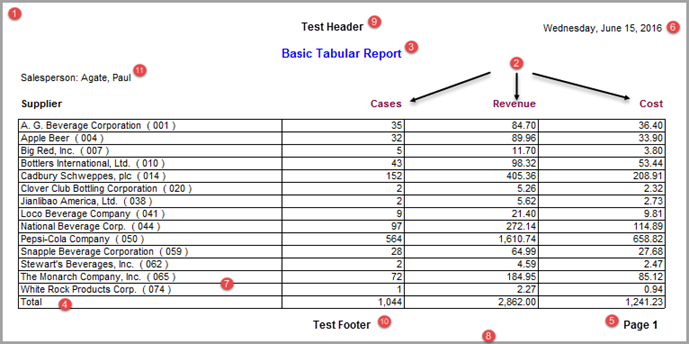
You can modify the appearance of the Basic Tabular Report by selecting any of the numbered Items and opening the context-sensitive Edit Item dialog box.
The following table identifies all of the numbered Items (and some of the Default Report options) that appear in the Basic Tabular Report with a brief description of each Item and option.
| Value | Item | Description | |
|---|---|---|---|

|
Tabular | N/A | The default report style for a dive window. An option in the Default Report dialog box. |

|
Column Heading | Summary Name | Double-click the name of the summary column heading (Cases, Revenue, ) in unlocked report mode to modify the Item attributes. |

|
Basic Tabular Report | Text | The report name entered in the Default Report dialog box. |

|
Total | Text | The variable is $TOTAL_STRING. |

|
Page Number | Text | The variable is $PAGE. |

|
Date | Text | The variable is $DATE. |

|
Gridlines | N/A | The Gridlines option appears in the Default Report dialog box. |

|
Fit to Page | N/A | The Fit to Page option appears in the Default Report dialog box. |

|
Test Header | Text | The variable is $HEADER. |

|
Test Footer | Text | The variable is $FOOTER. |

|
Salesperson: Agate, Paul | Parent Dimension Name + Value | Salesperson is the name of the dimension. Paul Agate is the dimension value. |
See also:
- Modifying the Layout of Summary Columns
- About Dimension and Page Breaklevels
- About Report Items
- About Text Variables