Modifying the Layout of Summary Columns
The  Edit Summary Layout dialog box (Dive window >
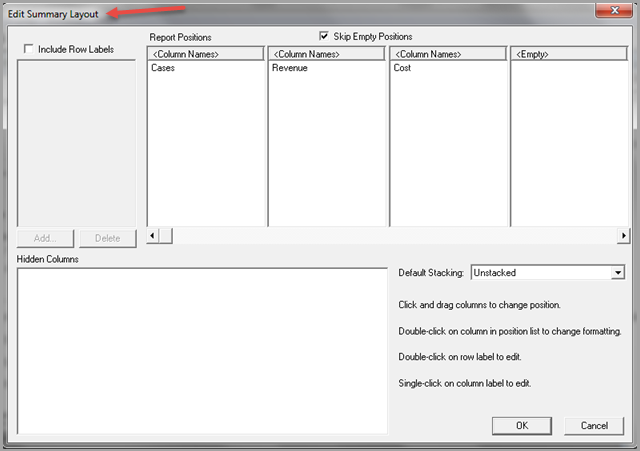
You can use the options in this dialog box to further configure how ProDiver displays summary information after you choose a report style. The edit options enable you to fine-tune the appearance of a default report from the beginning or at any point in the report building process.
The following list describes the options available in the Edit Summary Layout dialog box for modifying summary columns:
- Change the Column Order — to change the order of a summary column, drag the column name to a different report position.
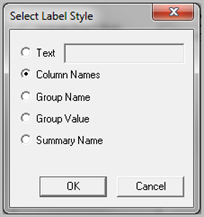
- Change the Column Name — double-click <Column Names> to open the Select Label Style dialog box.
- The default is the name of the column from the dive window. Select an option to replace the default value. If you select an option, such as Group Name, and a Group Name has not been defined, ProDiver inserts a blank column name in the report. If you select the Text option, you can enter an ad hoc name in the text box.
- Hide Summary Columns — to remove the column name and its values from the report view, drag the summary name from the column to the Hidden Columns box. To unhide a column, drag the name from the Hidden Columns box to a column position.
- Change the Row Label — select the Include Row Labels option, and click Add to insert a default row label (Row-A, Row-B, and so on). If a row label already exists, double-click the name to open the Select Label Style dialog box and modify the label.
- Change the Column Format — double-click any column name occupying a Report Position to edit the format of the values that appear in the column. By default, ProDiver enables the Use Default Format option. Clear this option to make changes using the selections available in the Edit Format dialog box.
- Default Stacking — the option you choose in this list alters the layout of columns by controlling how many summaries (such as Units Sold, Revenue, Cost) can appear in a single column. You can stack up to sixteen summaries in a single column. Most default report styles place columns side-by-side so that you read from left to right. When you choose a stacking option, ProDiver places columns that normally display left to right in top-to-bottom order. As a result of stacking, ProDiver inserts configurable row labels (Row-A, Row-B, and so on) for each stacked summary as shown in the following figure:
-
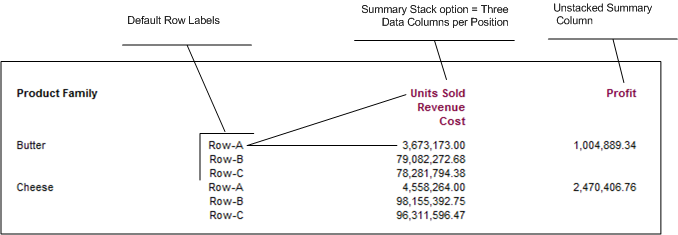
The summary stacking option is useful when there is a natural relationship between the columns of data (Plan vs. Actual). The previous figure shows how it is sometimes easier to view the relationship between numbers (a top-to-bottom view of Revenue vs. Cost) and then deriving a total (i.e., Profit) in a separate column.
The following list describes some of the different summary stacking options:
- Unstacked — one summary per column.
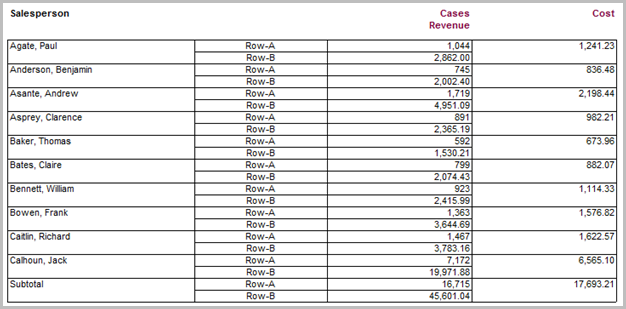
- <n> Data Columns per Position — choose between two to sixteen summaries per column. ProDiver stacks the first <n> summaries you specify in the first column, the next <n> summaries in the second column, etc. until all summaries are displayed. This example shows the resulting report when you configure the Edit Summary Layout dialog box with the Two Data Columns per Position option.
- Stack by Summary Column — this option will stack into the same column all summaries that were derived from the same base model summary. For example, a report containing Revenue Total, Revenue YTD, and Revenue Last YTD will stack these values in the same column. If the same report also contains Cases Total, Cases YTD, and Cases Last YTD, then ProDiver stacks these values in a second column.
- Stack by Group — stacks into the same column all summaries that utilize the same Named Group. For example, given a report containing the following summary columns:
- Units Total
- Cost Total
- Revenue Total
-
If you add a Named Group called “YearMo Sales 2007” (Revenue Total for 2007) and choose this option, ProDiver displays a report similar to the following:
-

- Empty — removes all summary columns from the report.
See also: