About the Style Tab
The Edit Item, Style  tab contains the following sections:
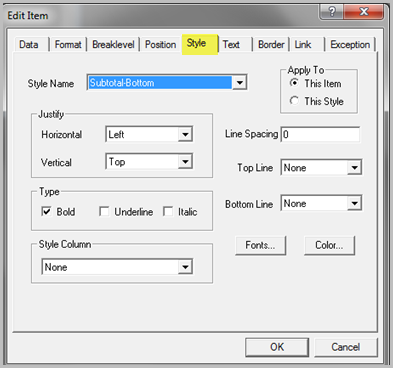
Style Name
The Style Name list includes the following preset formatting styles that are applied by default to report items:
|
|
|
|
|
|
|
|
|
|
|
|
|
|
In addition to the previous preset styles, you can select Add Style to add a new style or configure an existing style with different attributes for the current ProDiver session.
ProDiver stores all styles, either preset or custom, used or unused, in the Report View Marker or report template.
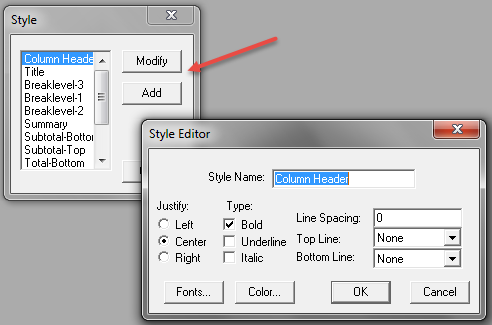
You can also create a new or edit a preset style by selecting dialog box, where you can configure the attributes for the selected style option.
 Apply To
This section enables you to apply any style changes you make to either the report item or the report style option. This Item only changes the style settings for the currently selected items. This Style changes the style settings for the current style and all items that use that style.
NOTE: The Apply To options are applicable for the current ProDiver session only.
Justify
This option specifies the Horizontal (Left, Center, or Right) and Vertical (Top, Center, or Bottom) justification you can apply to an item. The repositioning occurs within the column or text area associated with the item.
Type
Specifies a font style (Bold, Underline, or Italic) to apply to an item.
Line Spacing
Specifies the spacing (in pixels) after an item. If the selected item is a summary value (for example, a column of numeric values), ProDiver adds the specified spacing after each row. To add space above an item, use the Vertical Offset option on the Position tab.
Top Line/Bottom Line
Specifies if lines appear above or below an item. Line options include: Normal (default), Bold, Gray, Dashed, Double, and Double-Dashed. For example, you might use one of these options to enhance the display of totals or subtotals in a column.
Fonts
Opens the Font dialog box where you can set the font type, size, and style.
Color
Opens the Color dialog box where you can choose or create a color for the item.
Style Column
A list that contains preset column styles (if defined) that you can apply to the item.
See also:
- About the Position Tab
- About the Format Tab
- About the Text Tab
- About the Link Tab
- About the Exception Tab
- About the Border Tab