About the Format Tab
NOTE: Clear the Use Default Format check box to select custom formatting options.
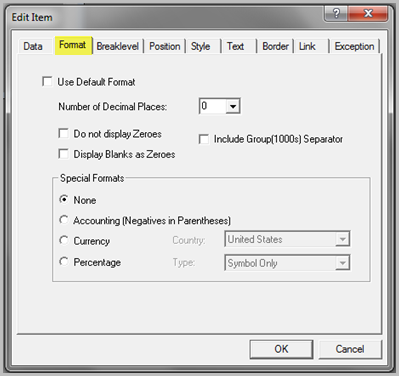
 Use Default Format
Specifies that all summary values inherit their formatting from the underlying tabular display. Clear this option to activate custom formatting options.
Number of Decimal Places
Specifies the number of decimal places to display for summary values in a column. You cannot enter a value that is greater than the number of decimal places in the underlying tabular display. Be sure to enable the Include Group (1000s) Separator option when changing the number of decimal places.
NOTE: ProDiver performs all calculations on the number in the underlying tabular display.
Do not display Zeroes
If enabled, removes zeroes from a summary column and displays a blank cell.
Include Group (1000s) Separator
If enabled, displays a thousands separator (for example, a comma in the US locale: 2,344) for values in the thousands. ProDiver uses the Windows OS locale setting to determine the appropriate separator.
Display Blanks as Zeroes
If enabled, places a zero value in blank cells, which allows for additional cell formatting (for example, adding a percentage such as 0%).
Special Formats
This section contains the following options:
- None—Do not assign any special formatting to values.
- Accounting—Displays negative numbers in parentheses; not with a negative sign.
- Currency—Displays the currency symbol for the country selected in the Country list.
- Percentage—Displays a percent sign after a value or converts a value to a percentage by multiplying the value by 100.
See also:
- About the Position Tab
- About the Style Tab
- About the Text Tab
- About the Link Tab
- About the Exception Tab
- About the Border Tab