Spectre Flow Squash Process Object
The Spectre Flow Squash Process object combines rows that are identical for a set of dimension columns.

In addition to combining rows, the Squash Process object provides a calculation field for every column that allows data manipulation before the data is combined. The Squash Process object has three sections in the properties panel where you set attributes.
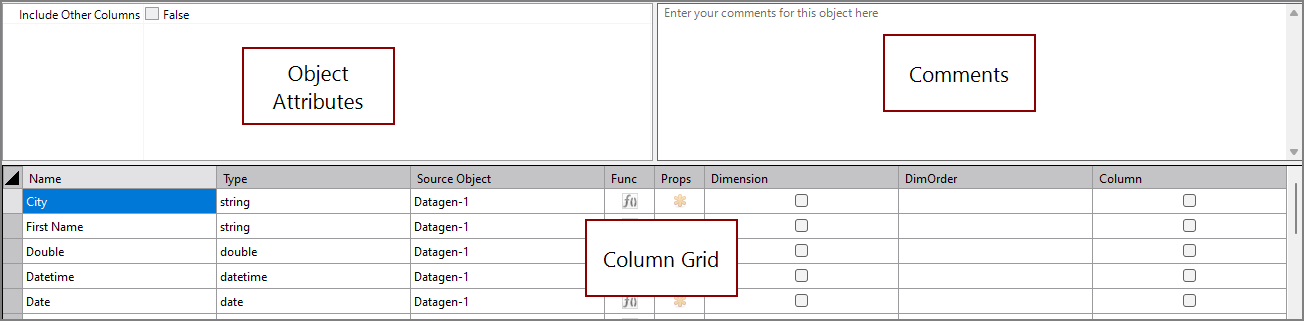
 Object Attributes
You set attributes for the Squash Process object in the object attributes section.
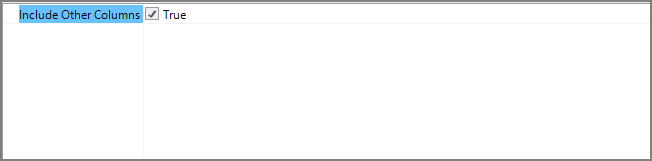
| Attribute | Description |
|---|---|
| Include Other Columns | If true, any columns found in the input that are not specified are included. For information about the flow script tag, see include-other-columns. |
Comments
Each object has an area where you can enter comments. It is DI best practice to enter a note for every object in a Spectre Flow script.
Every Spectre Flow node comment area is Markdown-enabled. For more information, see Workbench Markdown Editor.

Column Grid
The Squash Process object column grid section lists the columns from the input data sources.

| Attribute | Description |
|---|---|
| Name | Displays the name of each input column. You can edit this value if the column is created by the squash object; otherwise, it is read-only. |
| Type | Displays the type of each input column. This attribute is read-only and is set to unknown when the column is created by the squash object. |
| Source Object |
Displays the name of the source object for the column. This attribute is read-only. Double-click the Source Object value for a column to change focus to that object. |
| Func | Click the function icon ( ) to open the Edit Expression window. The expression defined here calculates its value based on the squashed rows and generally is a summary function.. This can include summarizing the column, finding the minimum, maximum, or the standard deviation. See Summary Functions. ) to open the Edit Expression window. The expression defined here calculates its value based on the squashed rows and generally is a summary function.. This can include summarizing the column, finding the minimum, maximum, or the standard deviation. See Summary Functions. |
| Props |
Opens the Edit [Column] properties window. |
| Dimension |
Defines the input columns used to combine rows. Rows that have identical values for all the selected dimension columns are combined. Select the Dimension check box for columns you want to set as dimensions. Columns with the Dimension check box selected cannot have the Column check box selected. At least one input column must be marked as a dimension. A number is automatically entered in the row's Dim Order. |
| Dim Order | Defines the dimension order for input columns with a Dimension check mark. The Dim Order is determined automatically by the order in which you select the Dimension check box for input columns. You can edit these numbers to change the order. If you assign a Dim Order value for an input column not already marked as a dimension, a check mark is added to the Dimension check box. |
| Column | Defines input columns that are preserved and passed to the output data flow. Select the Column check box for input columns that you want to pass to the output data flow. This optional attribute is useful for keeping data intact. Columns with the Column check box selected cannot have the Dimension check box selected. |
NOTE: When opened in the column grid, the right-click context menu has the following options specific to the Squash node:
-
Add Custom Dimension—Creates a new calculated dimension. When this option is selected, you name the new dimension and then provide the expression that calculates the value of the dimension.
-
Add Custom Column—Creates a new calculated column. When selected, you can either create a fully custom column with a custom expression, or select from a group of predefined expressions:
-
Count
-
Dimcount
-
Sum
-
Info
-
Average
-
Min
-
Max
-
String_agg
-
Edit Expression Window
The Edit Expression window is a dedicated interface for writing Spectre expressions. Each pane of the window is numbered and described below.

-
Column Grid—Lists each available column from the input data flow and displays the column's data type. Double-click the column to automatically insert a value("Column Name") function into the expression editor.
-
Expression Editor—Defines the Spectre expression. Auto-complete functionality is available.
-
Documentation—Displays the grammar, summary, and help link for a selected function. Click a function or highlight the name of a function in the expression editor to see documentation for that function.
-
Errors—Displays any warnings or errors for the expression in the expression editor.