Spectre Flow Lookup Process Object
The Spectre Flow Lookup Process object allows you to add data from lookup tables before building the output. You can use a column or columns from your input data as key values to find a single line of data in a lookup table.

The Lookup Process object has four sections in the properties panel where you set attributes.
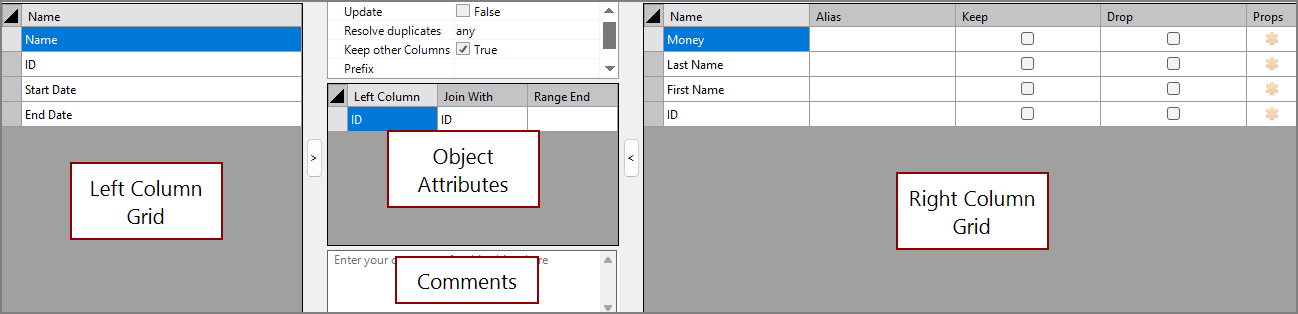
 Object Attributes
You set attributes for the Lookup Process object in the object attributes section.

| Attribute | Description |
|---|---|
| Update | When this value is true, any time an incoming column shares a name with a column in the main table, the columns are merged. In this merge process, all incoming values are used except when an incoming value is null. If this value is false and an incoming column shares a name with a column in the main table, the script errors and fails. For information about the flow script tag, see update. |
| Resolve duplicates |
Controls behavior for lookups. The specifications are:
The selection becomes relevant whenever a lookup table has more than one row with the same set of keys (or, in the case of range-keys, when the keys cannot resolve some row in the base table unambiguously to one row in the lookup table). NOTE: By default (the strict option), when a build encounters duplicate lookup keys with identical values, that value is used. Otherwise, a warning is issued due to the ambiguity, and <unknown> is used instead. There is only one warning issued per lookup. Use the Resolve Duplicates set to any, first, or last to change this behavior. Best practice is to avoid duplicate or <unknown> keys. For information about the flow script tag, see resolve-duplicates. |
| Keep other columns | If present, any lookup column not mentioned in the Left Column or Join With columns are included in the output. For information about the flow script tag, see include-other-columns. |
| Prefix | Sets a string to add to the beginning of the names of all the columns from this input. For information about the flow script tag, see prefix. |
| Case-Insensitive | If selected, the lookup operation ignores differences in case between values. For information about the flow script tag, see case-insensitive. |
| Left Column | Specifies a column that contains values from the left column grid for joining. |
| Join With | Specifies a column that contains values from the right column grid for joining. |
| Range End |
Indicates a range-lookup. When an end column is included, the lookup column is assumed to be the start of the range. The lookup is performed by connecting the key column to pairs of range columns in the lookup. A range-lookup takes three arguments:
For a lookup row to match a main row, the main table's key value must be between the begin-range and end-range values, inclusively. The begin-range and end-range values can be null, in which case the range is open on either side (or both sides). Range lookup keys can be any type, including string. |
Comments
Each object has an area where you can enter comments. It is DI best practice to enter a note for every object in a Spectre Flow script.
Every Spectre Flow node comment area is Markdown-enabled. For more information, see Workbench Markdown Editor.

Column Grid
The Lookup Process object column grid section lists the columns from the input data sources. Only the right column grid attributes can be modified.

| Attribute | Description |
|---|---|
| Name | Displays the name of each input column. This attribute is read-only. |
| Alias | Defines an alternate name for one or more input columns. Spaces before or after an alias column name are ignored. Spaces within an alias column name are acceptable. |
| Keep |
Manages which columns are kept in the output data flow. If no columns have a Keep check mark, all columns are kept in the output data flow, except for any explicitly marked Drop. Select the Keep check box for columns you want to explicitly keep in the output data flow. After marking any column with a Keep check mark, only those marked Keep are kept in the output data flow. NOTE: After any Keep check boxes are checked, do not use the Drop check boxes, because clicking a Drop check box sets all Keep check boxes to unchecked. |
| Drop |
Manages which columns are removed from the output data flow. Select the Drop check box for columns that you want to explicitly suppress from the output data flow. NOTE: Use the Drop check boxes only when no Keep check boxes are checked. |
| Props | Opens the Edit [Column] properties window. |