Spectre Flow Join Process Object
The Spectre Flow Join Process object allows you to add more data to your main data flow before building an output.

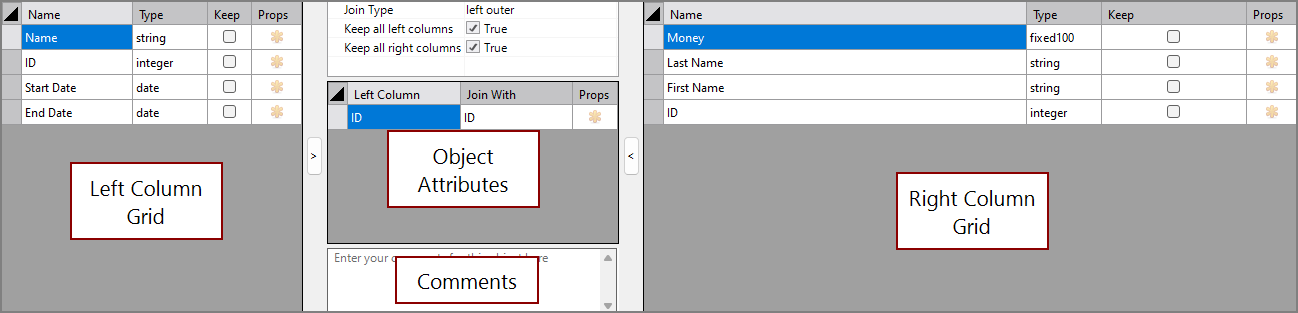
The Join Process object has four sections in the properties panel where you set attributes.
 Object Attributes
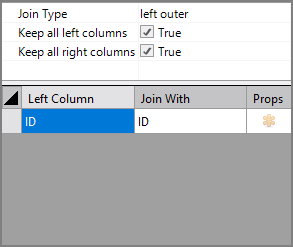
You set attributes for the Join Process object in the object attributes section.
| Attribute | Description |
|---|---|
| Join Type |
Determines the type of join that is performed. The join types in the Join Process object closely match the join types used in classical relational database logic. The following join types are supported:
For information about the flow script tag, see join-type. |
| Keep all left columns | If true, any left side columns not specified with the Left Column attribute are included in the output. For information about the flow script tag, see include-other-left-columns. |
| Keep all right columns | If true, any right side columns not specified with the Join With attribute are included in the output. For information about the flow script tag, see include-other-right-columns. |
| Left Column | Specifies a column that contains values from the left column grid for joining. For information about the flow script tag, see left-column. |
| Join With | Specifies a column that contains values from the right column grid for joining. For information about the flow script tag, see join-column. |
| Props | Opens the Edit [Column] properties window. |
Comments
Each object has an area where you can enter comments. It is DI best practice to enter a note for every object in a Spectre Flow script.
Every Spectre Flow node comment area is Markdown-enabled. For more information, see Workbench Markdown Editor.

Column Grids
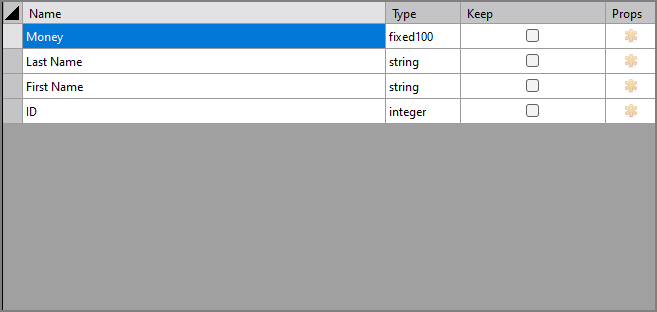
The Join Process object column grid section lists the columns from the input sources. The right and left column grids have the exact same structure.
| Attribute | Description |
|---|---|
| Name | Displays the name of each input column. This attribute is read-only. |
| Type | Displays the type of each input column. This attribute is read-only. |
| Keep |
Manages which columns are kept in the output data flow. Select the Keep check box for columns you want to explicitly keep in the output data flow. After marking any column with a Keep check mark, only those marked Keep are kept in the output data flow. |
| Props | Opens the Edit [Column] properties window. |