Overview
This topic describes the Workbench user interface components in a typical working environment
Context menus are available throughout the interface in: Explorer, tabs and properties panes within the Main Window Space, tab titles, and the Status Bar
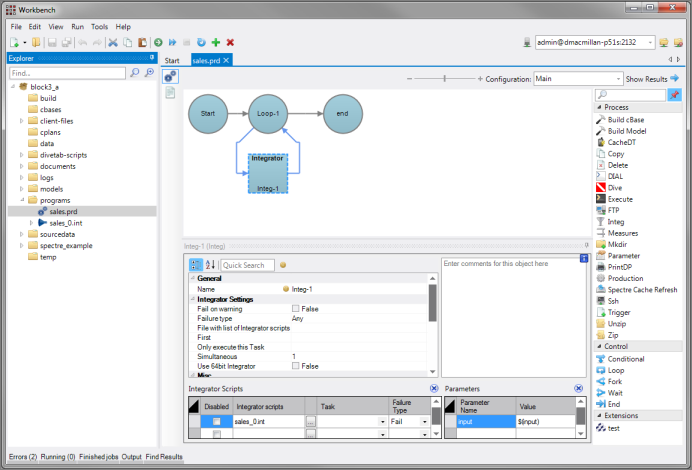
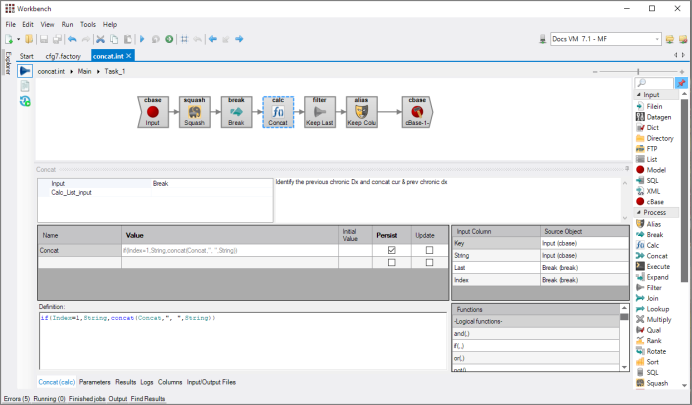
The sample screen presents a typical Workbench session showing an open Visual Integrator script with a

Main Window Space:
- Toolbar—List of actions you can perform. Different actions are available depending on what kind of file is currently the active tab.
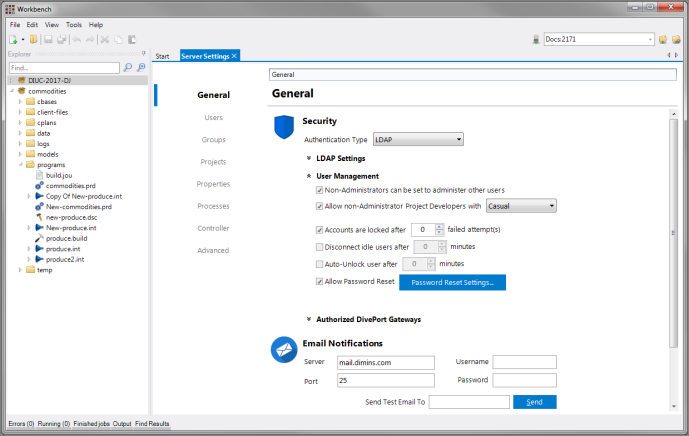
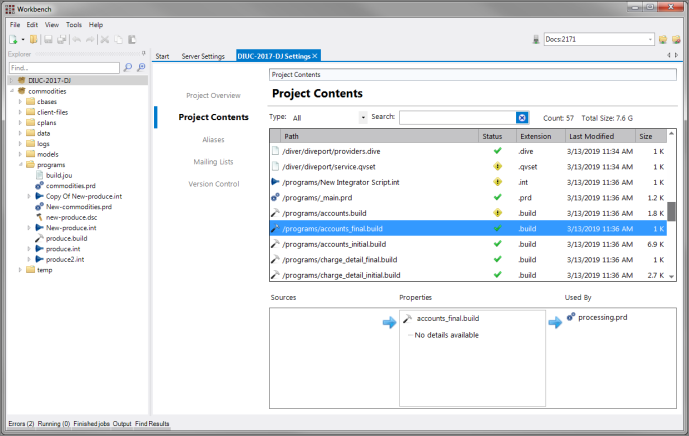
- Tabs—A file opened from the Explorer or administrative tabs opened from the Tools menu (Server Settings and Project Settings). Click the tab title to activate a particular tab for editing/testing
- Secondary Tabs "bread crumb trails" (only appear on some tabs)—Navigate sub-tasks of the active Visual Integrator script by clicking the triangle to expose choices (similar to navigating in Windows Explorer)
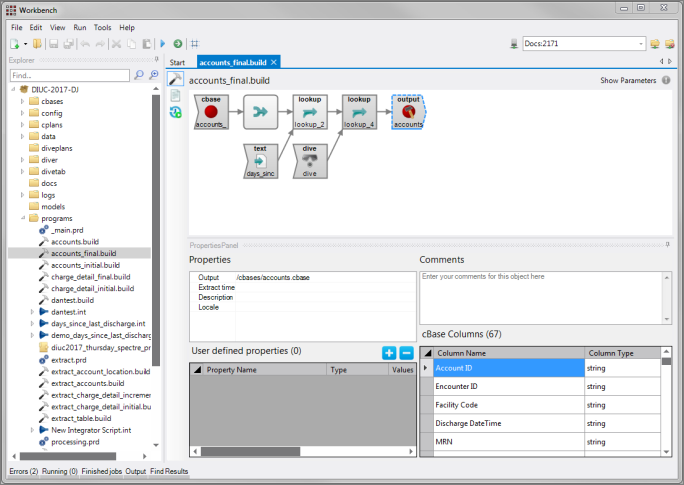
- Task Flow Panel—Create and edit scripts with visual icons (Spectre Build Flow, Visual Integrator, Production, Visual Builder, and limited DiveTab modules)
- Object Properties Panes—Set properties and attributes for the currently selected object (cBase output object in this example); each object has one or more required attributes
Tool Windows:
- Explorer—On the left, navigate folders and files within your project (supports drag-and-drop operations to and from Windows Explorer)
- Object Palette—On the right, select an object to place it into the currently open script
NOTE: The Workbench Explorer tool window is always present, though you can unpin it and have it collapsed, while the right-hand tool window (Visual Integrator Object Palette in the example above) changes and may disappear altogether, depending on the active tab type.
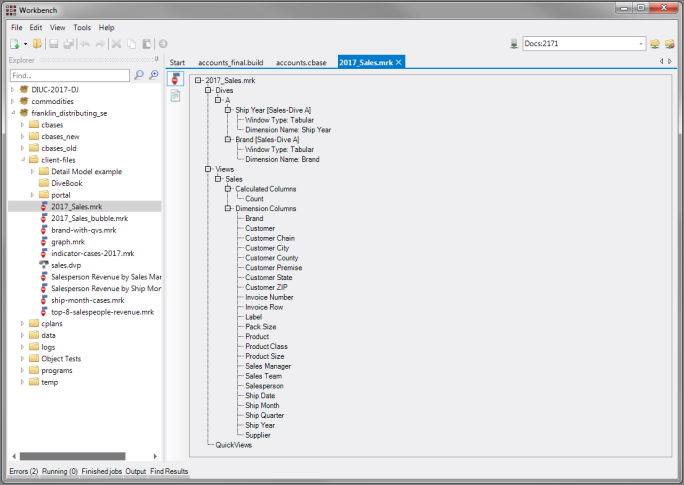
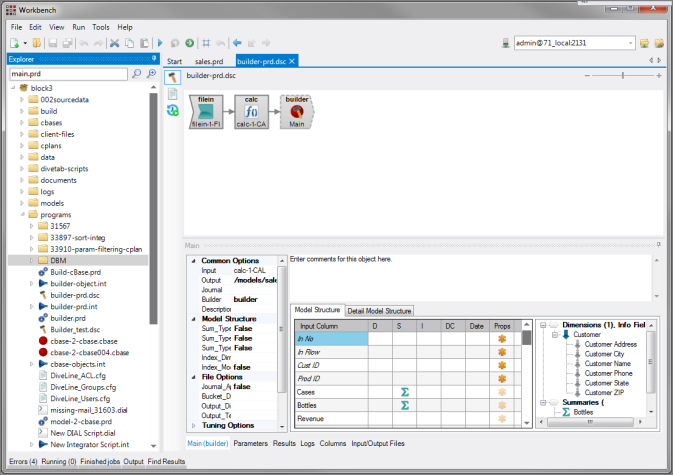
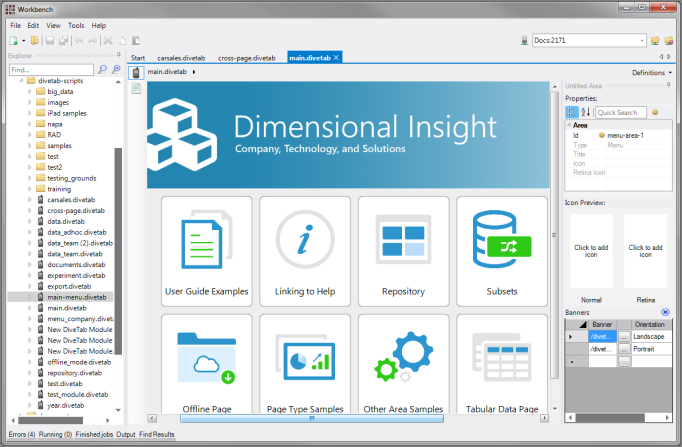
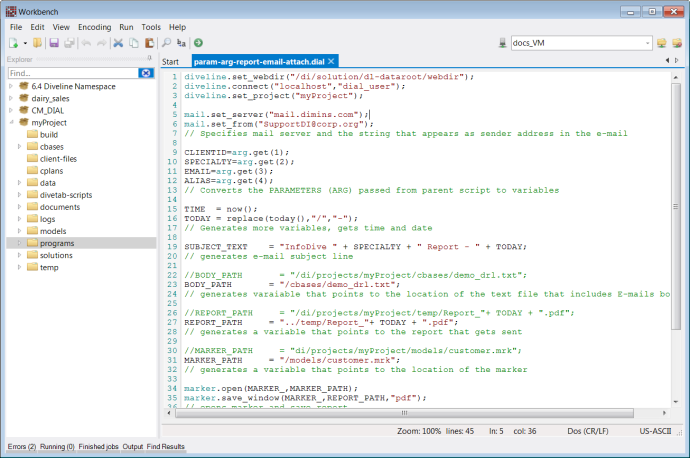
What displays in the Main Window Space depends on the active tab type. The example above shows a Visual Integrator script tab. Other tab types may include different GUI editors (based on the file type). Many file types also allow editing with the text editor, which may be particularly helpful for debugging scripts. Settings for the DiveLine server and projects also open in tabs.
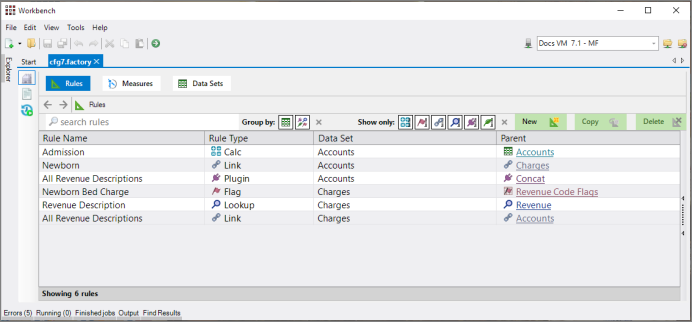
Click the headings below to view examples of other tabs.
 Server Settings