Page Parameter Code Samples
Here is an  example of a basic page parameter between a report page and an ad hoc page.
  sections {
    report-page {
      title "Report Page with Page Parameter"
      cplan "/cplans/basic_101.cplan"

      dimension "Corporate Chain"
      text column = "Cost" {
        value-format "$#,###.00"
        link {
          page id = "ahp-param"
        }
      }
    }
  }

  pages {
    ad-hoc-page id = "ahp-param" {
      title "Parameters"
      cplan "/cplans/basic_101.cplan"

      parameter "Corporate Chain"
      dimension "Product Name"
      dimcount-dimension "Customer"
      text column = "Cost" {
        value-format "$#,###.00"
    }
  }
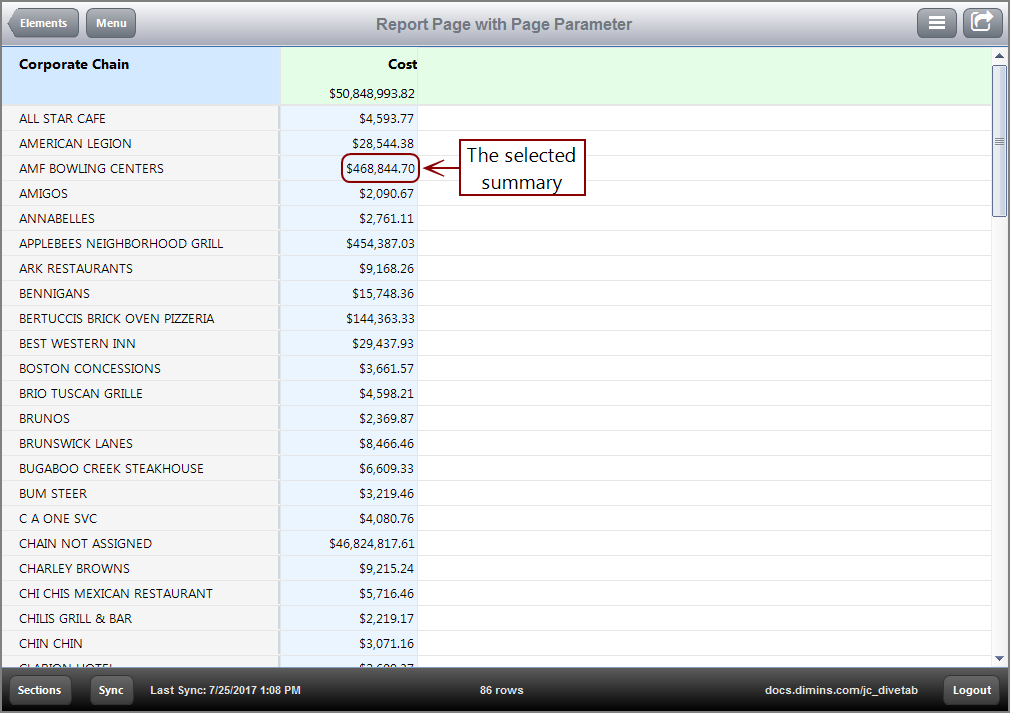
Here is how the report page appears in DiveTab, indicating the link for AMF BOWLING CENTERS.
Here is how the resulting ad hoc page appears after following the link for AMF BOWLING CENTERS.
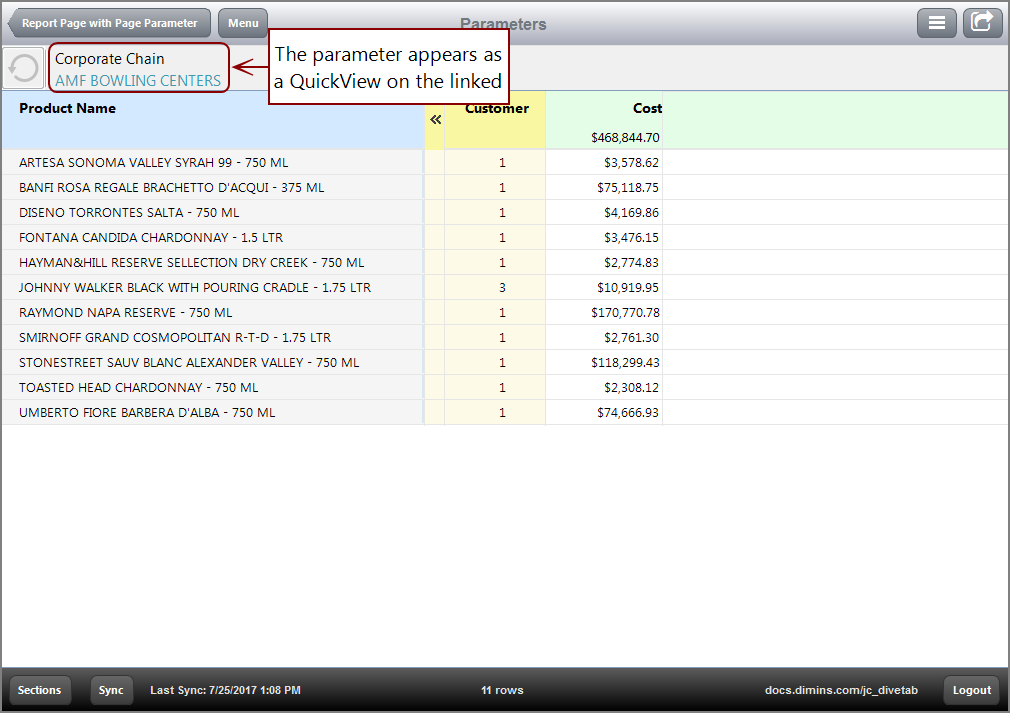
If there are no parameters, then nothing is accepted by the target page.
Anchor Date Parameter
Here is an example of an Anchor Date Parameter.
  sections {
    report-page {
      title "Anchor Date Parameters"
      cplan "/cplans/current-date.cplan"

      quickview-set {
        cplan "/cplans/current-date.cplan"
        dimension-quickview "Date" single-selection = true all-values = false {
          dimension "Posting Period"
          default-values "2013-01"
          default-last-value
        }
      }
      dimension "Corporate Brand"
      text column = "Cases YTD" {
        link {
          page id = "rp-param"
        }
      }
    }
  }

  pages {
    report-page id = "rp-param" {
      title "Product Page"
      cplan "/cplans/current-date.cplan"

      quickview-set {
        cplan "/cplans/current-date.cplan"
        dimension-quickview "Date" single-selection = true all-values = false {
          dimension "Posting Period"
          default-values "2013-01"
          default-last-value
        }
      }
      parameter "Date"
      parameter "Corporate Brand"
      dimension "Product Name"
      text column = "Cases YTD"
    }
  }
Here is the code for the cPlan.
  cplan {
    cbase-input "/cbases/NY.cbase"

    take-parameter "Date" {
      default "TODAY"
    }

    time-series {
      date `value("Posting Period")`

      anchor ```if(param("Date") = "TODAY",
      today(), period_end(period("gregorian month",
      param("Date"), "YYYY-MM")))```

      summary "Cost"
      summary "Cases"

      ranges {
        year-to-date
        month-to-date
        current-year
        all-quarters
        rolling-months 3
        rolling-months 6
        recent-weeks 24
        recent-months 12 label-format = "MMM"
        all-months label-format = "MMM"
      }
    }
  }
For this anchor calc, if TODAY is specified, the today function is used. Otherwise, the period_end function is used.
Here is how the report page appears in DiveTab with the QuickView changed from 2013-01 to 2011-01.

Here is the resulting page after following the ALICE link.

Notice how the target page accepts the value 2011-01 and shows it in the QuickView. The target page also accepts the other page parameter, Corporate Brand.
Conditionalized Link Parameter
Here is an example of a Conditionalized Link Parameter.
  sections {
    report-page {
      title "Conditionalized Link Parameter"
      cplan "/cplans/conditions.cplan"

      dimension "Resp SalesPerson"
      text column = "Cost" {
        link {
          page id = "rp-param"
          condition column = "CostCalc"
        }
      }
    }
  }

  pages {
    report-page id = "rp-param" {
      title "SalesPerson Parameter"
      cplan "/cplans/conditions.cplan"

      parameter "Resp SalesPerson"
      dimension "Customer"
      text column = "Cost"
    }
  }
Here is the calculation in the cPlan that defines the conditions for the column.
calc "CostCalc" `if(add(value("Cost")) > 10000, "1", "")`
Here is how the report page appears in DiveTab, with active links for values greater than 10,000.

Here is the resulting page after following the link for Amanda.
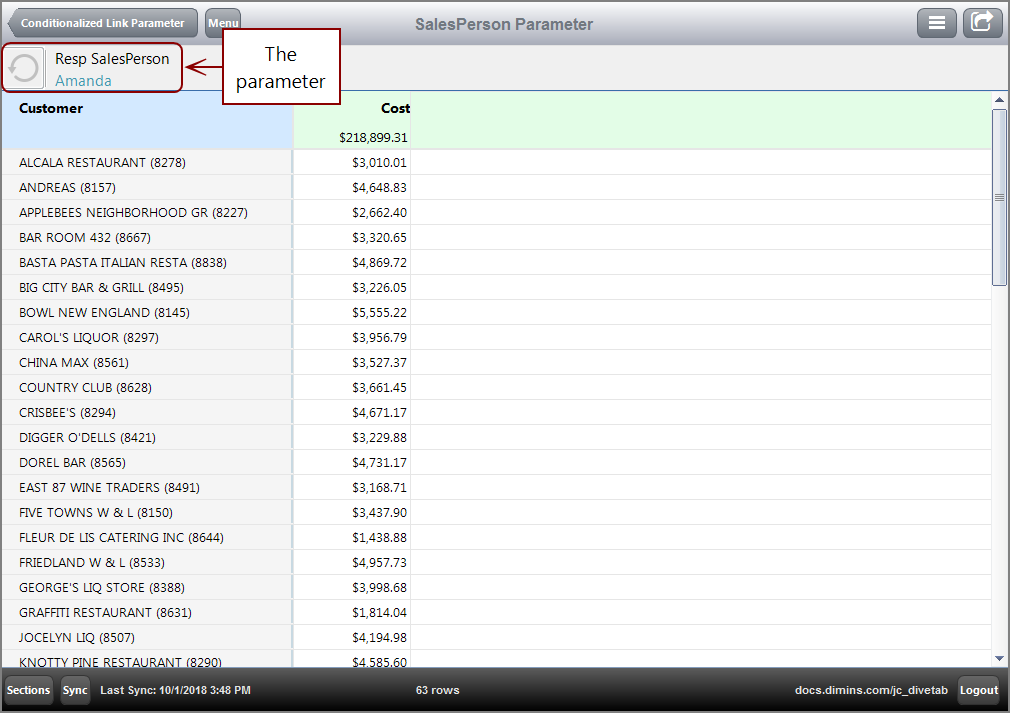
Notice how the target page accepts the value Amanda.
Dimension Value Parameter
Here is an example of a Dimension Value Parameter.
  sections {
    report-page {
      title "Dimension Value Parameter"
      cplan "/cplans/basic_101.cplan"

      dimension "Corporate Brand"
      text column = "Cost" {
        link {
          page id = "rp-param"
          parameter "Premise" "ON PREMISE"
        }
      }
    }
  }

  pages {
    report-page id = "rp-param" {
      title "On Premise"
      cplan "/cplans/basic_101.cplan"

      parameter "Premise"
      parameter "Corporate Brand"
      dimension "Product Name"
      text column = "Cost"
    }
  }
Here is how the report page appears in DiveTab.
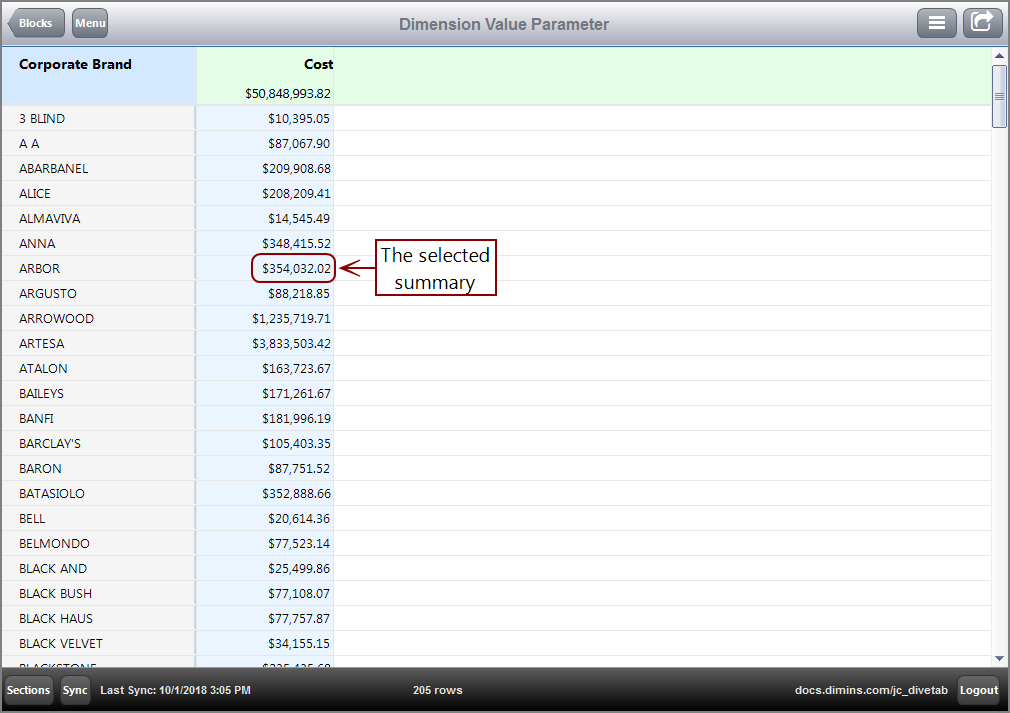
Note how the Premise parameter does not appear as a parameter.
Here is the resulting page after following the ARBOR link.

Notice how the target page accepts the parameter value ON PREMISE and shows it as a QuickView. The target page also accepts and displays the other page parameter, Corporate Brand.
Parameterized List Parameter
Here is an example of a Parameterized List Parameter.
  sections {
    report-page {
      title "Parameterized List Parameter"
      cplan "/cplans/metric_test.cplan"

      quickview-set {
        cplan "/cplans/metric_test.cplan"
        list-quickview "Metric" single-selection = true all-values = false {
          default-values "Cost"
          values "Cost" "Discount" "Net Sales"
        }
      }

      dimension "Vendor"
      text column = "Metric Value" {
        link {
          page id = "rp-param"
        }
        value-format "$#,###.00"
      }
    }
  }

  pages {
    report-page id = "rp-param" {
      title "Parameterized List Parameter"
      cplan "/cplans/metric_test.cplan"

      quickview-set {
        cplan "/cplans/metric_test.cplan"
        list-quickview "Metric" single-selection = true all-values = false {
          default-values "Cost"
          values "Cost" "Discount" "Net Sales"
        }
      }

      parameter "Metric"
      parameter "Vendor"
      dimension "Corporate Brand"
      text column = "Metric Value" {
        value-format "$#,###.00"
      }
    }
  }
The list quickview identifies the placeholder value Metric as the column in use, as well as the existing columns, Cost, Discount, and Net Sales, that are used to replace it. The Metric Value is used as a column, and the placeholder Metric changes according to what column, Cost, Discount, or Net Sales, is selected.
Here is the code for the cPlan.
  cplan {
    cbase-input "/cbases/NY.cbase"

    take-parameter "Metric" {
      default "Cost"
    }
    calc "Metric Value" `calc(param("Metric"))` label = "$(Metric)"
  }
A calc identifies the new Metric Value column, and the placeholder value as Metric.
Here is how the report page initially appears in DiveTab.

Here is same report page with the QuickView changed from Cost to Net Sales.

Here is the resulting page after following the KENDALL-JACKSON link.

Notice how the target page accepts the Net Sales value, along with Vendor value KENDALL JACKSON, and shows the values in the QuickViews.
See also: