You can define a new UDD from a tabular display.
-
Dive on the dimension with which you want to associate the UDD.
NOTE: DI recommends that you not associate UDDs with dynamic dimensions. If you attempt this, the UDD associates with the core dimension instead of the intended dynamic dimension and unexpected results can occur.
-
Right-click an empty cell on the dive window.
The tabular context-sensitive menu opens.
-
Select Create User Defined Dimension.
The Create User Defined Dimension
 dialog box opens.
 - In the Name box, enter a label for the UDD column.
-
Optional. Enter Undefined Values if you want to label cells that you do not define in the UDD column.
Leave this box blank if you want the undefined cells to be blank.
-
Click OK.
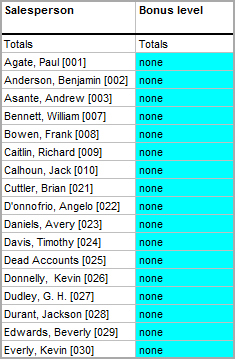
The blank UDD column appears with colored background cells in the
dive window. -
The column cells are populated with the Undefined Value if you entered one.
In this
example, the Undefined Value is none. -
To add or edit values in the UDD column:
-
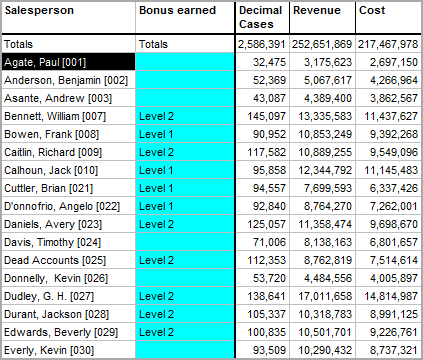
Click a cell in the UDD column in which you want to add a value.
The cell background color changes.
-
Click the cell a second time to activate the text editor.
The cell background color changes to white.
- Enter the value in the cell.
- Click outside the cell.
-
-
Continue entering values in the UDD column
cells until you are done. -
Right-click a blank cell to open the context-sensitive menu, and select Commit User Defined Dimension.
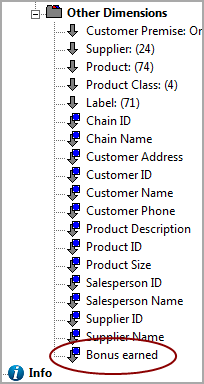
ProDiver adds the UDD as an info field in the
Console, and automatically promotes it to a dynamic dimension. -
Optional. Save the marker file or DivePlan.
The UDD is saved in the marker or DivePlan, and is available for future use.


See also: