Adding a Summary Value Item
- Overall Total — displays the overall total for the selected summary usually at the beginning or end of the report (for example, all cases sold over a period of time).
- Dimension Value — displays a subtotal for a selected dimension value (for example, Company, Salesperson, or Ship Month).
A sample Add Item, Summary Value dialog box appears below:
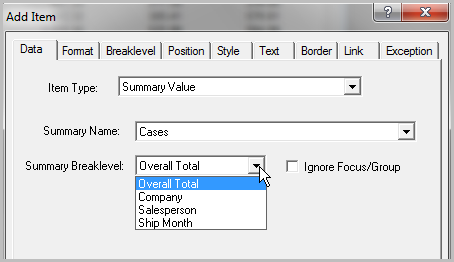
If there are any focused or grouped values in the report, select Ignore Focus/Group to display the grand total for all values.
Complete the following steps:
-
Open the marker file containing the baseline report with deleted items. Alternatively, open the marker you saved from Adding a Summary Name Item to view the progression of adding back all of the items deleted from the baseline report.
-
To display the report in edit mode, click the Lock/Unlock icon.
-
To open the Add Item dialog box, click the Add Item icon and perform the following actions:
- For Item Type, select Summary Value
- For Summary Name, select Cases
- For Summary Breaklevel, select Ship Month
-
Click OK to add the Cases Summary value to the report.
If you select Ship Month as the Summary Breaklevel, ProDiver displays
 a numeric value at the top of the report.
If you select Overall Total as the Summary Breaklevel, ProDiver displays
a different numeric value at the top of the report. - Notice that the summary value added to the report depends on both the Summary Name and Breaklevel. If you select Ship Month as the breaklevel, ProDiver adds the first value for the following dimension string: Alpha Brands:Agate, Paul:2010-03 (or 168 cases sold). If you select Overall Total as the breaklevel, ProDiver adds the only value for the following dimension string: All Companies:All Salespersons:All Ship Months (or 286,313 cases sold).
-
To configure this item, double-click numeric summary value to open the Edit Item dialog box and perform the following actions:
- In the Breaklevel tab, set the Breaklevel Dimension to Ship Month and Location to Body.
- In the Position tab, set Column to Column D.
- In the Style tab, set Style Name to Summary.
-
Click OK to display
the report window with the summary values in the selected breaklevel position and with the correct attributes.NOTE: You can save this report as a marker and continue with Adding a Summary Value Item as an Overall Total to build back all of the items deleted from the baseline report.


