Downloading the Server Installation Package
You can download purchased software from the Dimensional Insight website.
-
Using a web browser, go to the Dimensional Insight website:
http://www.dimins.com. -
On the
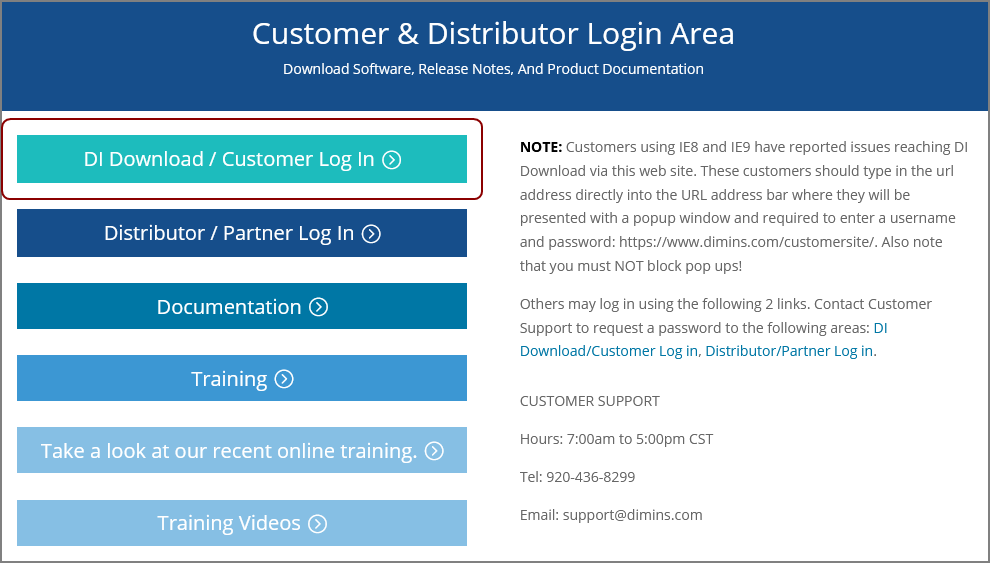
 home page, click Sign In.
The Customer & Distributor Login Area page opens.
-
Click
DI Download / Customer Log In. A
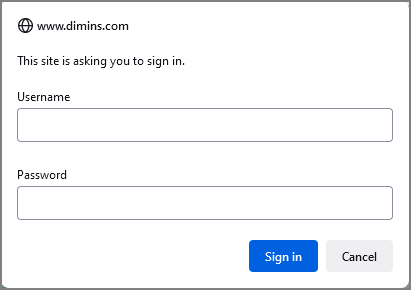
dialog box prompting for your sign-in information opens. -
Enter your Username and Password, and click OK.
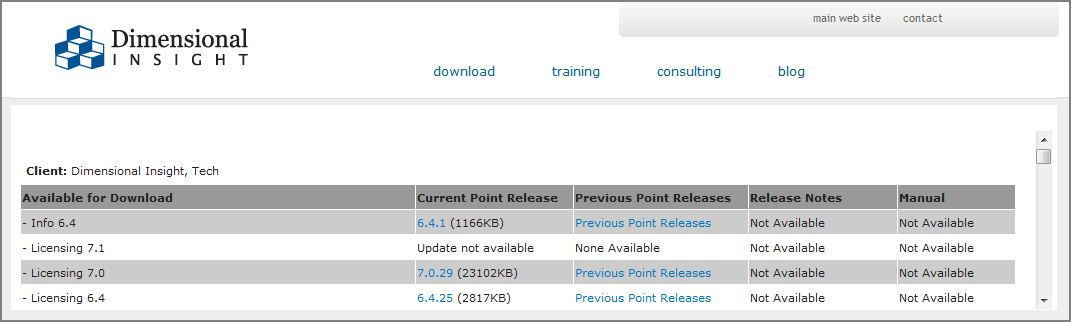
The Dimensional Insight Customers home page opens.
-
Click
DI-DOWNLOAD. The
software and documents download page opens. -
Locate the latest version of the 8.0 software that you purchased, and click the
blue version number.
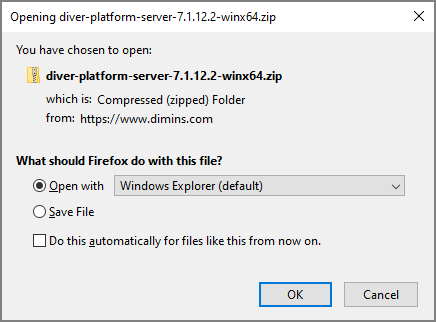
The
Opening download verification dialog box opens.
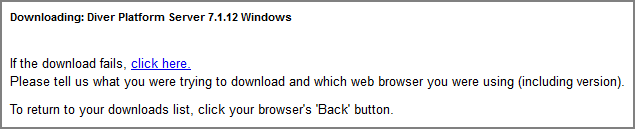
The
Downloading page opens in the browser. If the Opening dialog box does not open automatically, follow the instructions on the page: -
Save File, and click OK.
The Diver Platform Server software package zip file downloads to the Downloads directory on the local computer.
NOTE: Most browsers enable you to configure the download location for files downloaded from the Internet. For example, if you are using the Firefox browser