Appendix A: Bridge
Bridge is a web application based on DivePort technology that you can use to navigate your DI applications from one central place. It gives you single-click access to your DivePort and NetDiver portals and can reach all your relevant web content without relying on browser features like bookmarks. You can also use Bridge to connect to ProDiver and DiveTab.
Bridge presents a single view of DivePort Applications and Portals regardless of which version is running. This allows you to build new Applications and Portals taking advantage of the latest Diver Platform functionality without first upgrading existing applications. You get seamless access to existing and future applications under one umbrella.
Design
Bridge supports all versions of DI software. There are no cross-compatibility limitations, so you can use it to launch any functioning DI application, on one machine or multiple platforms. It can be configured to use one Authentication layer across all DI applications, supporting single sign-on. The result is a single browser window and single-click access for your end users.
Bridge must be configured to recognize the other Applications and DI Portals, and in turn, the hosting DiveLines must recognize Bridge. You can use multiple Bridges to segment your users if it suits your environment, but it is not required. The user interface can display one button for each Portal to which a user has been granted access, so the displayed buttons can vary by user. All users can be directed to a single URL to bookmark.
The interface, no matter how it is configured, is designed to be simple and consistent. Here is an example of a user interface for the Bridge component.
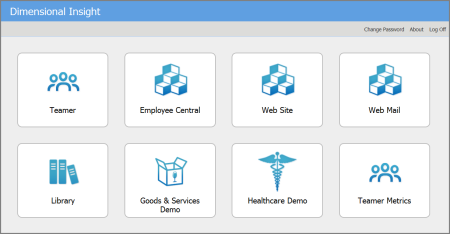
When installed and configured, Bridge authenticates end users when they log on. When the end user chooses a destination that is a DI application, a one time password is used to log on to the target. What a user sees in each destination is controlled by that destination’s configuration. Access is no different than what is in place without Bridge.
Furthermore, for any given destination (for example, a DivePort), Bridge does not display a destination if it goes to DivePort pages that the current user does not have access to.
How it Works
The Bridge administrator names all the available destinations and provides an image and description for each button that is displayed for the end users. The administrator also enters the DiveLine, Application, and Portal URL information, and coordinates as needed with the administrators of the destination sites to complete configuration for single sign-on.
The tasks for Bridge are as follows:
- Use the hosting DiveLine’s user list for authentication.
- Determine what buttons to display for each user based on the settings for each destination.
- Link to other sites as configured.
NOTES:
- The authentication methods can be different between Bridge and the various target DiveLines. The target is set up to recognize Bridge, and Bridge forwards the authentication.
- Passwords are not important—they can be the same or different. In a typical scenario, end users log on to Bridge with their Bridge password, and can connect to any other DI application regardless of what their password is on those sites.
- New users added to sites need to be manually added to Bridge’s DiveLine.
From the end-user perspective:
- Access Bridge using the published URL in your chosen web browser.
- Enter your Username and Password, and log on.
- View the displayed buttons for each configured application or portal.
- Click on a button to open that application or portal.
- Return at any time to the Bridge tab to access another application or portal.
Requirements
The infrastructure required for Bridge is the same as for the Diver Platform. Bridge is easy to install and deploy: it is basically another DivePort instance, so it can run on your web server with all your other DivePorts. For more information, see Installing Bridge.
NOTE: For better control of Bridge access, particularly regarding who can modify Bridge settings, you might want to install a separate DiveLine dedicated for Bridge. A Bridge-specific DiveLine uses port number 3330. For more information, see
The basic set of users for Bridge is taken from whichever DiveLine is selected to host it. Additional users can be created using Workbench. For more information on maintaining users for DI software, please refer to Help Desk or the Server Settings section of the Workbench Help.
Bridge Configuration
Bridge can be installed on an existing DiveLine, or a new DiveLine instance can be created to host Bridge specifically. When Bridge is installed, all DiveLine administrators automatically become Bridge administrators. Bridge administrators are not required to be DiveLine administrators. Only administrators have access to the Admin menu in Bridge. For options, see the Server Settings section of the Workbench Help.
No changes are required to DI applications on the same DiveLine as Bridge, but applications on other DiveLines require edits to the Authorized DivePort Gateways list under the General tab for Workbench Server Settings. This needs to be edited manually to include Bridge’s IP address or DNS name. This is required for single sign-on to work, along with the DiveLine server name and port in the Destination Settings. For more information, see Configuring Destinations.
When planning your deployment, be aware that the DiveLine user list controls who has access to that Bridge instance. If user lists vary widely for your DivePorts across your organization, manual updates are required.
Once installed, an administrator can set up additional administrators and customize Bridge’s look directly from the Bridge portal. For more information, see Configuration Options.
Authentication
Bridge’s user list is that of the hosting DiveLine. All types of DiveLine authentication are supported (Own, LDAP, SYSTEM, or Web Server). Bridge’s IP address or DNS name must be in the destination DiveLine’s gateway_ips list for a seamless handoff.
Bridge keeps connections open to its destination DiveLines in order to keep its lists of the users on those DiveLines up to date. It uses these user lists to decide which destinations to show to a user. If a destination has a DiveLine associated with it, it only shows that destination if the user is in the user list for that DiveLine. If the destination goes to a DivePort page ID, Bridge also makes sure that the user has access to that page and does not show a destination that the user does not have access to.
If Bridge and destination DiveLines have the same user names (irrespective of case), and the DiveLine and Admin Username are part of the Destination configuration, Bridge knows which buttons to display for the end user. One click on the button puts the user into the application.
Bridge does a case-insensitive comparison when determining whether a user is in the current list of users for a given DiveLine, to determine whether to show a destination pointing to that DiveLine to that user.
If the Destination configuration is incomplete, causing Bridge to show a destination the end user has no access to, then a secondary log on appears when the button is clicked.
NOTE: Bridge uses an encrypted connection when communicating with encryption-enabled 7.2 DiveLines. However, for compatibility with older DI software, it allows access to unencrypted DiveLines.