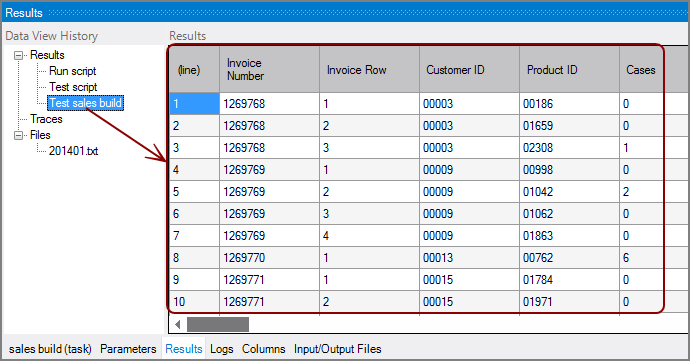
Each time Visual Integrator tests or runs scripts, tasks, or objects, an entry appears in the Data View History pane as a node in the Results tree. The corresponding information is displayed in the Results pane. Entries are prefaced with Test or Run followed by the script, task, or object name. Results for up to 20 runs and tests can be displayed.
Click the node in the Data View History > Results pane to display the results.
NOTE:
- The Data View History is empty until you run a command from the Run menu. This history is kept only for the current Workbench session.
- Run commands switch to the Logs sub-tab. You must click the Results sub-tab at the bottom to view the results. If you click the Results sub-tab before the script completes, a message displays that it is waiting for the output.
- Depending on the script output file type after a Run Script command, you might see a View Results button in the Results pane, which opens the file in the appropriate editor. If the output is a cBase or Model, it might open up directly in ProDiver if that Workbench preference is set. See Visual Integrator Preferences.
- The Results pane displays only the first 100 columns. You can use the Select Columns dialog box to add more columns and choose which columns display. Although you can display up to 1,000 columns, there might be a noticeable lag time displaying a larger number of columns.
 Using the Select Columns Dialog Box
To change the columns and the order that they display in the Results pane for tests:
-
In the Results pane, right-click > Select Columns.
The
Select Columns dialog box opens showing which columns are currently visible and the list of all available columns. To control the column display, use the icons that are available between the column grids and below the Shown Column grid.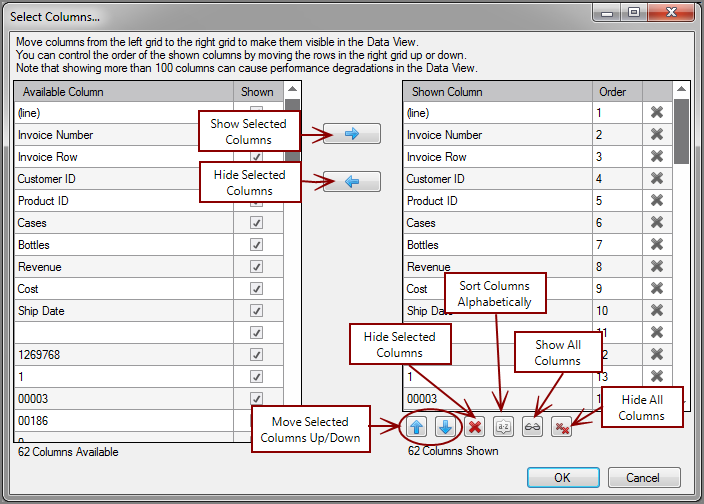
-
Use the following methods to adjust which columns are visible:
- Click either within the Available Column or Shown Column grids or the column headings and begin typing the name of a column. This activates the QuickFind feature and all matches are highlighted in yellow with the first match selected.
Use the following QuickFind shortcut keys to move around and select columns:
- F3 moves to the next match
- Shift+F3 moves to the previous match
- Ctrl+Alt+Shift+F3 selects all matches
- Esc removes highlighting
- Add columns by selecting them in the Available Column grid on the left and clicking Show Selected Columns (right arrow).
-
Remove columns by selecting them in the Shown Column grid and clicking Hide Selected Columns (left arrow).
In the Shown Column grid, you can also remove columns by clicking the X for the column or clicking the Hide Selected Columns icon below the Show Column grid.
- Show all available columns by clicking Show All Columns.
- Hide all columns by clicking Hide All Columns.
- Manipulate columns in the Available Column grid with the following shortcut keys:
- Ctrl+S—Moves the selected column to the Shown Column grid
- Ctrl+H—Hides the selected column in the Shown Column grid
- Ctrl+T—Toggles the visibility of the selected column in the Shown Column grid
- Click either within the Available Column or Shown Column grids or the column headings and begin typing the name of a column. This activates the QuickFind feature and all matches are highlighted in yellow with the first match selected.
-
Use the following methods to reorder or sort the columns:
- In the Shown Column grid, select the Order column for the column and type the new numeric position.
- Change a column's position by dragging and dropping it to the new position.
- Select the column and click Move Up or Move Down.
- Sort the Shown Column grid by clicking Sort Columns Alphabetically.
- Click OK.