The Results tab displays information after a script or task is run or tested. Click a label in the Data View History panel to display information in the Results pane.
NOTE: The Data View History is empty until you run a command from the Run menu. This history is kept only for the current Workbench session.
The following tabs might appear in the Data View History:
-
Results > Run Script—Displays
 View Results button, which opens the results in the appropriate editor. You might need to click the Results tab at the bottom to display the View Results button.
NOTE: You can also run a specific task.
-
Results > Test Script—Displays a table of results from the test in the Results pane as shown
here. NOTE:
- You can also test a specific task or object.
- You can right-click in the results table for commands to interact with the data and make changes.
-
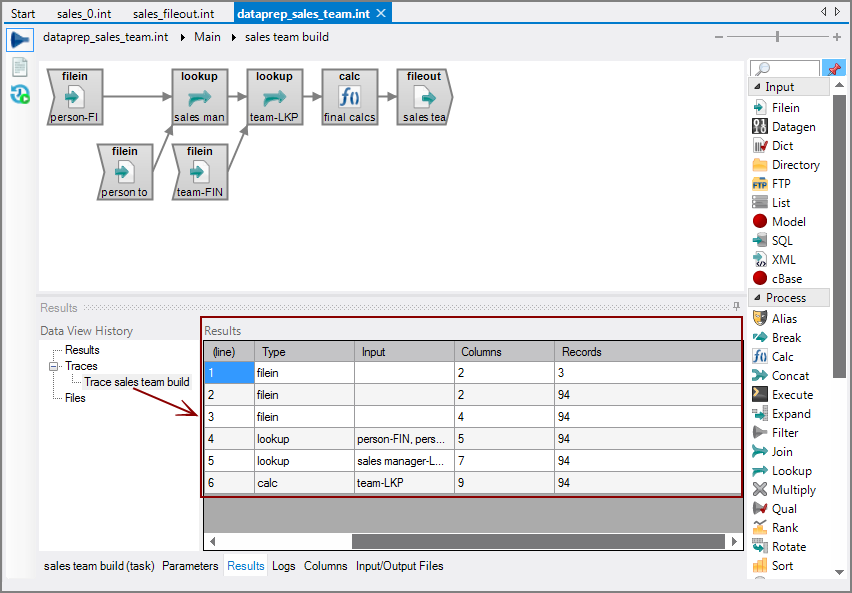
Results > Traces—Displays the results of the Run > Trace Task command as shown
here. -
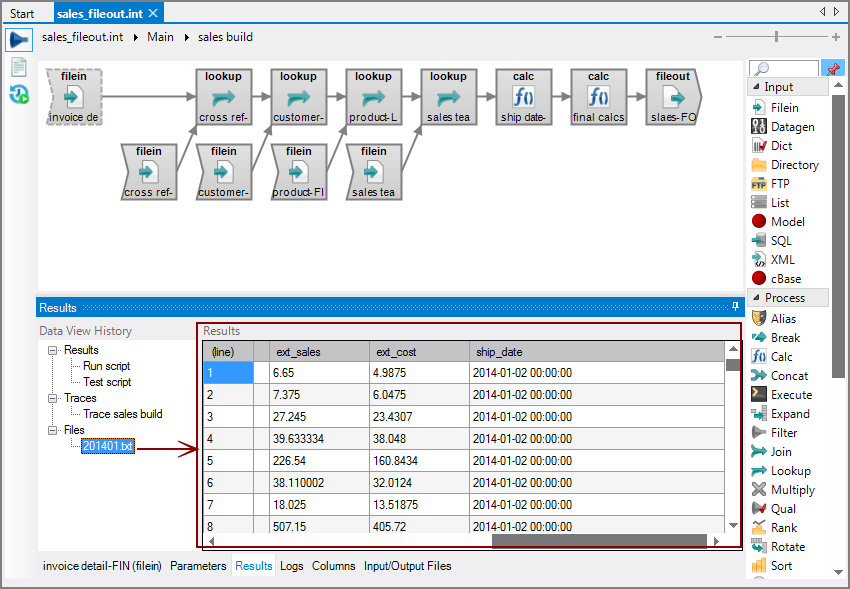
Results > Files—Displays the content of input text files as shown
here. You might need to click the Results tab at the bottom to show the Data View History.NOTE: You can right-click in the results table for commands to interact with the data and make changes.
To populate the Files tab:
-
Select an input object in the task flow.
-
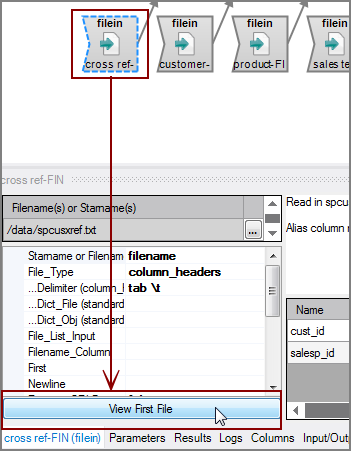
Click View First File at the bottom of the object properties panel as shown
here.
-


See also: