Whenever a Production script runs or a node within a script is tested, a log is generated. These internal Production logs are written and read using UTF8.
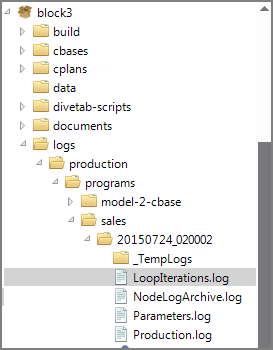
You can find the logs in the following default location:
<project name>/logs/production/<project path to script>/<script name>/YYYYMMDD_HHMMSS
This folder structure is created automatically when a Production job runs.
TIP: Production logs are best examined by using Show Results Mode.
Example Production Logs Explorer Structure
You can modify the log location in Workbench using the Project Settings tab.
 To modify the location of your Production logs
-
Open the Project.
-
Select Tools > Project Settings.
The Project Settings tab opens to the Project Overview tab. If it is not open, select the Project Overview tab.
-
Locate Log File Location below the Description box, and click the browse button.
-
Navigate to the folder where you want to place the logs, or use the Add Folder button to create a folder.
-
Click OK.
-
Confirm that the new folder appears in Log File Location and in the Explorer pane on the left side of the page.
-
Save the tab.
TIP: If in step 4 you manually enter a name for a nonexistent folder, rather than using Add Folder, and save the setting, the log folder structure is created the first time a script runs.
To configure file retention
You can control how long log files are retained for each Production script.
-
Open the Production script and click any white space in the Task Flow panel to ensure that no nodes are selected.
The
Overview panel displays below the task flow. -
Locate the Logs Files section in the Overview panel, and click the Edit button.
The
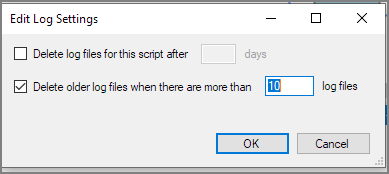
Edit Log Settings dialog displays. - To specify that logs are deleted after X days, select Delete log files for this script after and enter the number of days.
-
To change the default setting for the number of log files that are retained, ensure that Delete older log files when there are more than X log files is selected and enter the number of log files that you want to keep.
-
Click OK.
The log settings are saved for the script.
- TIP: If both check boxes in the setting dialog are checked, then logs are deleted if they meet either criteria (too old or too many).

 Debug Logging
If you set logging to debug, there is more verbose logging available. To turn debug logging on, add ShowDebug="True" to the top level 'CONF'"Production" object in di\solution\dl-dataroot\config\workbench.cfg
File Encoding
The attribute in Process nodes for handling the encoding of input files, External File Encoding, is also used for encoding the output, including the log files.