Source rules are derived automatically from columns in the cBase. Identifying a source rule allows you to add metadata.
NOTE: Typically, in Workbench 7.1(12) and earlier, all cBase input columns are imported as source rules automatically at build time. In Workbench 7.1(13) and later, instead of using source rules, DI recommends that you either allow automatic import of all input columns or use setup-rule tags to explicitly define which columns are imported. Source rules that were defined in earlier software versions continue to be supported.
TIP: Before identifying the source rule, you need to know the column name. You can open the cBase in ProDiver to see the columns that are used as source rules.
To add a source rule:
-
On the top of the Measure Factory Editor page, click Rules.
-
On the upper right, click New.
The
 New Rule pane opens on the right.
 - Select Source rule.
- Select a data set.
-
Click Create rule.
The
source rule is created and opens in the detail pane with the default name NewRule#. -
Enter a name for the rule, and click
 to confirm your changes.
 NOTE: Source rules are derived from columns in the cBase input data. Therefore this source rule name must match a column name in the data set.
In this
example, the source rule is Invoice in the data set Sales. -
Expand the
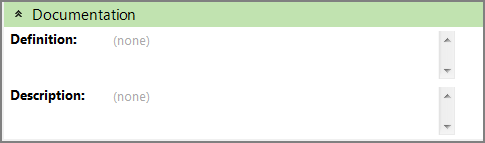
Documentation section to enter additional information about the rule. -
Click the blank space to the right of a field to edit it. When editing in the multi-line text boxes, press Ctrl+Enter or Shift+Enter to create a new line, or press Enter to apply your changes and exit edit mode.
Click
to confirm your changes. - Optionally, expand the Governance section to enter notes regarding governance. For example, who is responsible for updates, or when it was last modified.When editing in the multi-line text boxes, press Ctrl+Enter or Shift+Enter to create a new line, or press Enter to apply your changes and exit edit mode.
- Save the tab.


See also Factory Source Rules.