Calc rules apply an expression to each record in a data set to create additional columns.
To add a calc rule:
-
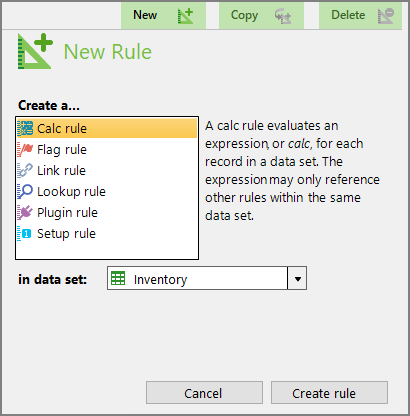
On the top of the Measure Factory Editor page, click Rules.
-
On the upper right, click New.
The
 New Rule pane opens on the right.
 - Select Calc rule.
-
Select a data set.
-
Click Create rule.
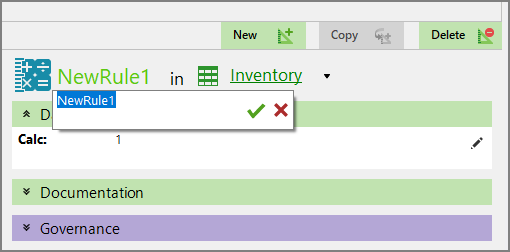
The
calc rule is created and opens in the detail pane with the default name NewRule#. -
Enter a name for the rule, and click
 to confirm your changes.
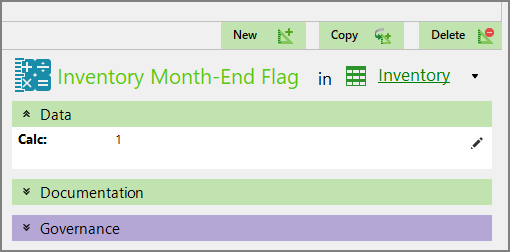
In this
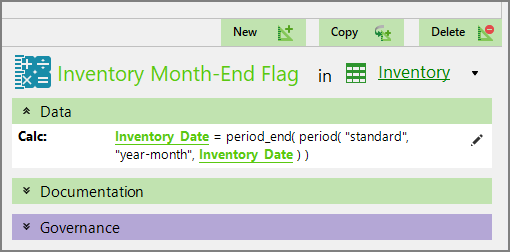
example, the calc rule is Inventory Month-End Flag, and it is in the Inventory data set. -
Click the edit icon
 on the right of the Calc section.
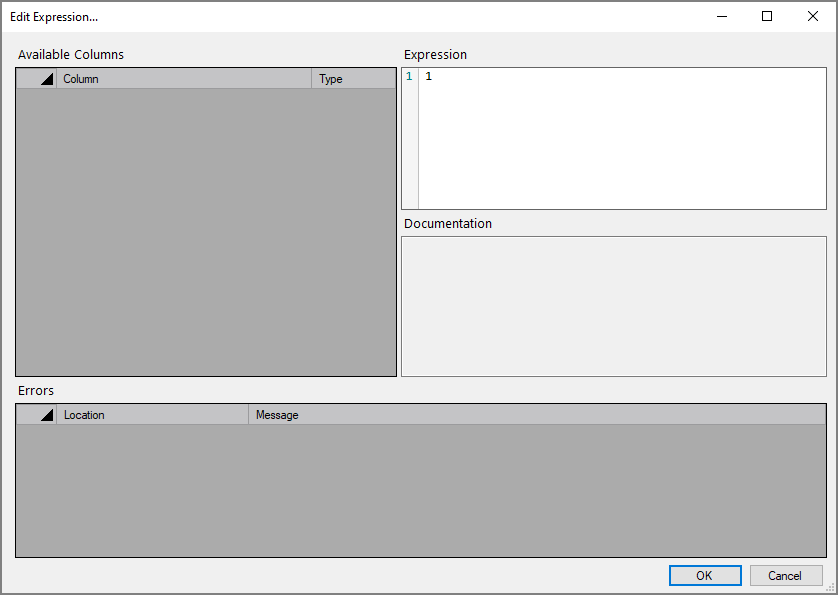
 The
Edit Expression window opens. TIP: The Edit Expression dialog box offers context suggestions for correct syntax.
-
Enter the
Spectre expression in the Edit Expression window. -
Click OK.
The window closes, and the calc appears in the
detail pane. -
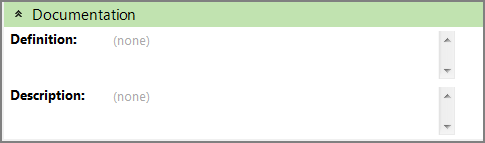
Optionally, expand the
Documentation section to enter additional information about the rule. -
Click the blank space to the right of a field to edit it. When editing in the multi-line text boxes, press Ctrl+Enter or Shift+Enter to create a new line, or press Enter to apply your changes and exit edit mode.
Click
to confirm your changes. - Optionally, expand the Governance section to enter notes regarding governance. For example, who is responsible for updates, or when it was last modified.When editing in the multi-line text boxes, press Ctrl+Enter or Shift+Enter to create a new line, or press Enter to apply your changes and exit edit mode.
- Save the tab.

See also Factory Calc Rules.