Lookups, or lookup tables, contain supplementary fields that the factory can use as reference data. Using the Data Sets page of the Measure Factory Editor, you can identify an existing lookup, select key columns to match records between the lookup and data set, and create lookup rules to choose what data to pull in.
Adding a lookup to a data set
-
In the left pane of the Data Sets page, double-click the data set that you want to edit.
The data set opens in the center pane.

-
In the center pane, click the double-chevron
 next to Lookups.
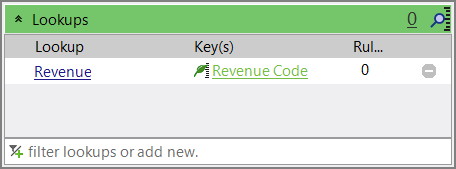
 Lookups opens.
 -
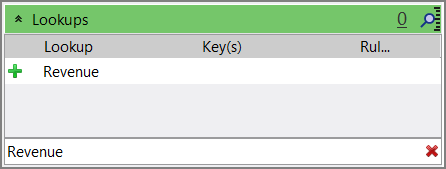
In the filter lookups or add new text box, enter the name of a new lookup.
The
name of the lookup appears in the table. -
Click
 next to the lookup name.
The lookup is added to the table.
-
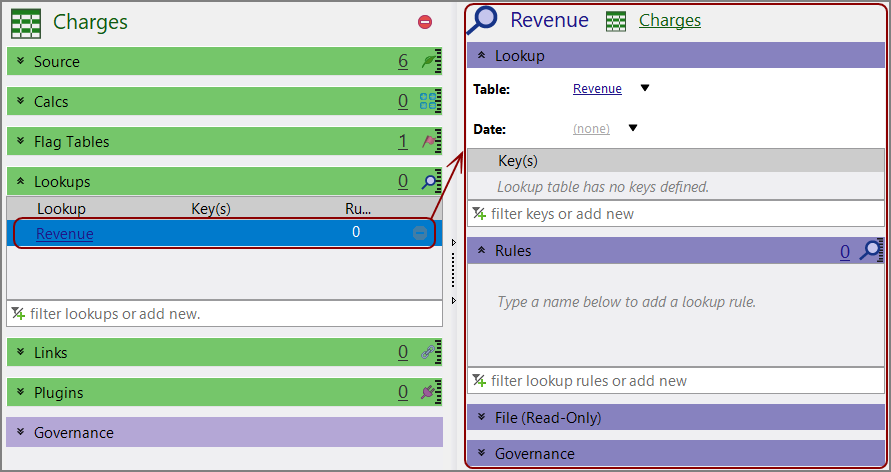
Double-click the lookup.
The lookup opens in the
detail pane on the right. -
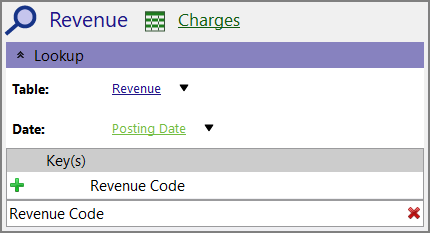
Select a column from the Date list to identify which transaction date the date columns in the lookup correlate to.
-
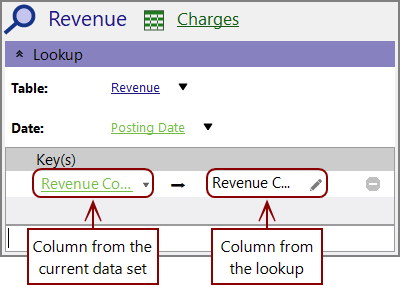
Under Key(s) on the detail pane, enter the name of the column in the filter keys or add new text box.
The
name of the column appears in the table. -
Click
next to the key name.The
key is added to the table. - Save the tab.

Adding a lookup rule from the Data Sets page
-
In the left pane of the Data Sets page, double-click the data set that you want to edit.
The
data set opens in the center pane. -
In the center pane, click the double-chevron
next to Lookups.Lookups opens. -
Double-click the lookup.
The lookup opens in the
detail pane on the right. -
Under Rules on the detail pane, enter the name of a new lookup rule in the filter lookup rules or add new text box.
The
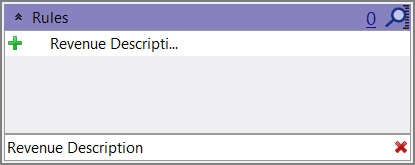
name of the rule appears in the table. -
Click
next to the rule name.The rule is added to the table.
-
Double-click the lookup rule.
The rule opens in the
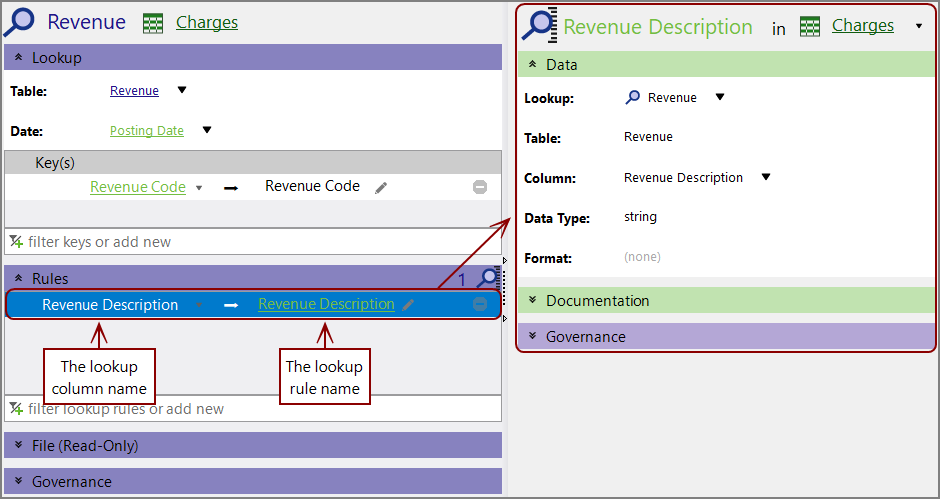
detail pane on the right, and the lookup opens in the center pane. -
Optionally, select a column from the lookup in the Column list to bring in to the data set.
TIP: Typically, the name of the column in the lookup and the lookup rule are the same, though this is not required.
-
Expand the
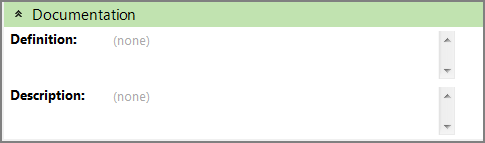
Documentation section to enter additional information about the rule if your organization requires it. -
Click the blank section to the right of a field to edit it. When editing in the multi-line text boxes, press Ctrl+Enter or Shift+Enter to create a new line, or press Enter to apply your changes and exit edit mode.
Click
 to confirm your changes.
 - Optionally, expand the Governance section to enter notes regarding governance. For example, who is responsible for updates, or when it was last modified.When editing in the multi-line text boxes, press Ctrl+Enter or Shift+Enter to create a new line, or press Enter to apply your changes and exit edit mode.
- Save the tab.

See also: