Published Data Registry
The published data registry is a utility that allows a DiveLine to expose data sources to external applications. The published data registry replaces the ODBC registry as of DiveLine 8.0(17). A data source connection is primarily composed of a table name that is connected to a data source on the DiveLine such as a cBase, cPlan, or Spectre Dive file and then outputs to a defined application type, such as the Web API or ODBC. You can register any number of tables in the registry. To set up a user DSN using the registry, see Creating a User DSN.
 Catalogs and Schemas
Tables stored in the registry are connected to a catalog and schema, which are ways to organize and categorize tables in a database. The default catalog is master. Queries to tables that are registered in the master catalog do not need to specify the catalog. There are three configurations to a query that use the catalog, schema, and table format:
FROM <catalog>.<schema>.<table>—Returns the <table> contained in the <schema> contained in the <catalog>.
FROM <schema>.<table>—Returns the <table> contained in the <schema> contained in the default catalog.
FROM <table>— Returns the first table in the registry that is contained in the default catalog and that matches <table>. This ignores the schema value.
For example, if the tables with the name mass_sales and vermont_sales are contained within a catalog named state_sales and a schema named northeast_sales, then you can access them with statements such as:
SELECT ... FROM state_sales.northeast_sales.mass_sales;
SELECT ... FROM state_sales.northeast_sales.vermont_sales;
When the data source is a cPlan, you can also access individual named inputs in the cPlan by adding @ followed by the input name.
For example:
FROM <catalog>.<schema>.<cplan_table>@<input_name>
When the data source is a Measure Factory, you can access individual scopes by adding @ followed by the scope name.
For example:
FROM <catalog>.<schema>.<factory_table>@<scope_name>
Applications
Data that is defined in the published data registry can be made accessible to the following applications:
-
ODBC—The data is accessible by external ODBC-enabled applications such as Microsoft Excel. See DI-ODBC Overview.
-
WebAPI—The data is accessible in the source parameter in a DivePort Web API call. See Web API Source Parameter.
-
Navo—The data is accessible as an input data source in Navo. See Get Navo.
-
Wildcard (*)—The data is accessible in older versions of DiveLine.
Published Data Registry in Workbench
Workbench features a published data registry GUI. To access the GUI:
-
Click Tools > Server Settings.
The Server Settings tab opens.
-
Click Published Data Registry.
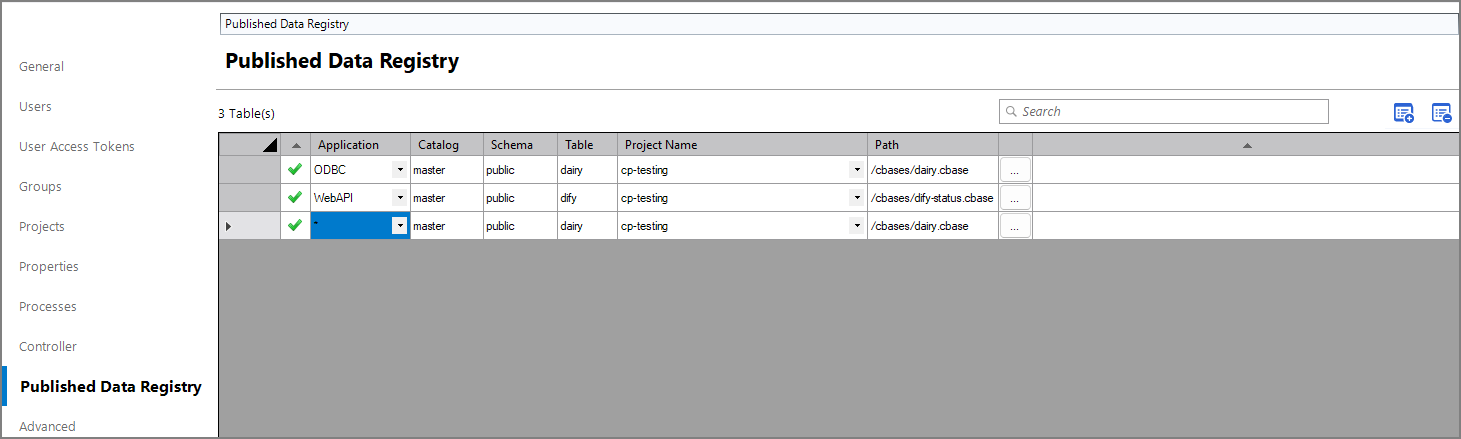
Each row in the published data registry table corresponds to a row in the published-data-registry.txt file. Adding a row in the published data registry table also adds a row in the text file.
NOTE: If the published-data-registry.txt file does not exist, adding a row in the published data registry GUI creates a copy of the published-data-registry.txt file in the DiveLine dataroot\config folder. If an odbc-registry.txt file exists from a previous version of DiveLine, it is changed into a published-data-registry.txt file.
published-data-registry.txt File
All application, table, catalog, and schema information for the published data registry is stored in the published-data-registry.txt file in the DiveLine dataroot\config folder. This file is automatically created when using dicfg commands to add a table. The file can also be created manually and saved in the dataroot\config folder.
The published-data-registry.txt file is a tab-delimited text file. It has six column headers (case insensitive): Application, Catalog, Schema, Table, Project, and Path. Additional columns are preserved but ignored by DiveLine. For example:
Application <tab> Catalog <tab> Schema <tab> Table <tab> Project <tab> Path
ODBC <tab> master <tab> public <tab> my_sales <tab> MyData <tab> /cbases/sales.cbase
WebAPI <tab> master <tab> public <tab> factory <tab> FactoryProject <tab> /factory-output
You can download the following formatted sample registry file:
For more information, see:
Mentioned in: