As with other sections of Workbench, when you are configuring your connections, you have access to various context menus.
Quick Connections Dialog
On the Quick Connection dialog, you can hover over an icon to see a summary of the connection settings.
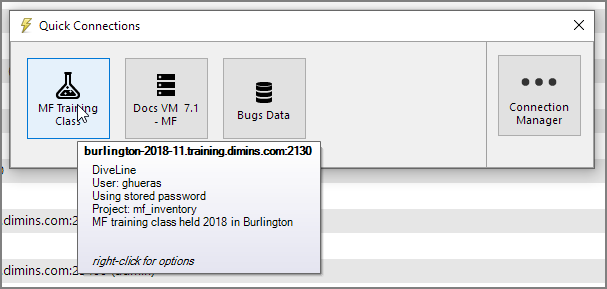
Right-click over an icon to see the context menu.
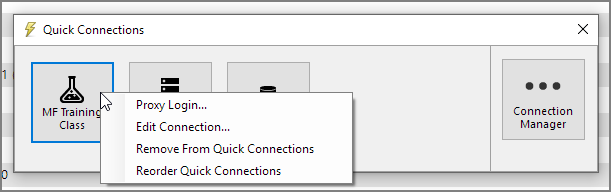
Your options are:
- Proxy Login—If the connection is open, you are presented with a close confirmation before you see a new Login dialog. Enter a new username and password for this host.
- Edit Connection—Opens Connections Manager with Connection Details showing for this connection.
- Remove From Quick Connections—Deletes the icon from the dialog and resets the Quick Connection status for that connection.
- Reorder Quick Connections—Displays a green check mark and enables click and drag of the icons. To save changes, hit Esc or close the dialog.
Connection Manager Dialog
Right-click over a connection to access the context menu.
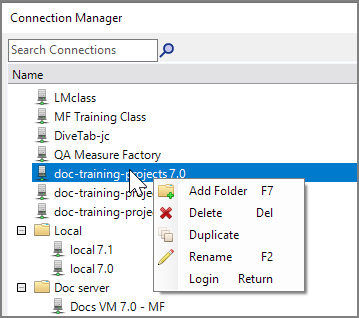
Your options are:
- Add Folder—Creates and selects a new folder so you can name it.
- Delete—Displays a confirmation dialog to delete the connection entry.
- Duplicate—Duplicates the connection, appending a number to the name. For example: Docs MF VM (2)
- Rename—Selects the connection name so you can enter a new name.
- Login—Connects to the server or displays an error message.
Right-click over an existing folder to access a slightly different set of options.
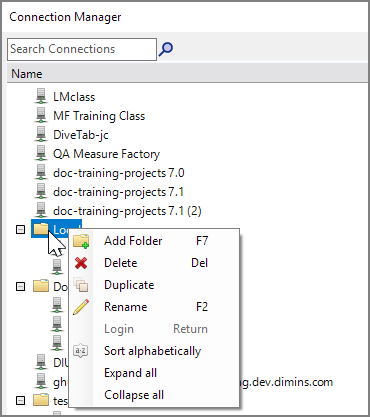
Your options are:
- Add Folder—Creates and selects a new folder so you can name it.
- Delete—Displays a confirmation dialog to delete the folder and its contents.
- Duplicate—Duplicates the folder and contents (does not rename it).
- Rename—Selects the folder name so you can enter a new name.
- Login—Not available on the folder level.
- Sort alphabetically—Reorders the connections within the folder alphabetically.
- Expand all—Expands the contents of the folder.
- Collapse all—Collapses the contents of the folder.