If your DiveTab project has a field that includes large amounts of text, the field can be formatted to hide a majority of the text until the user chooses to view it in full.
Here is an  example of this format in use for the Message column.
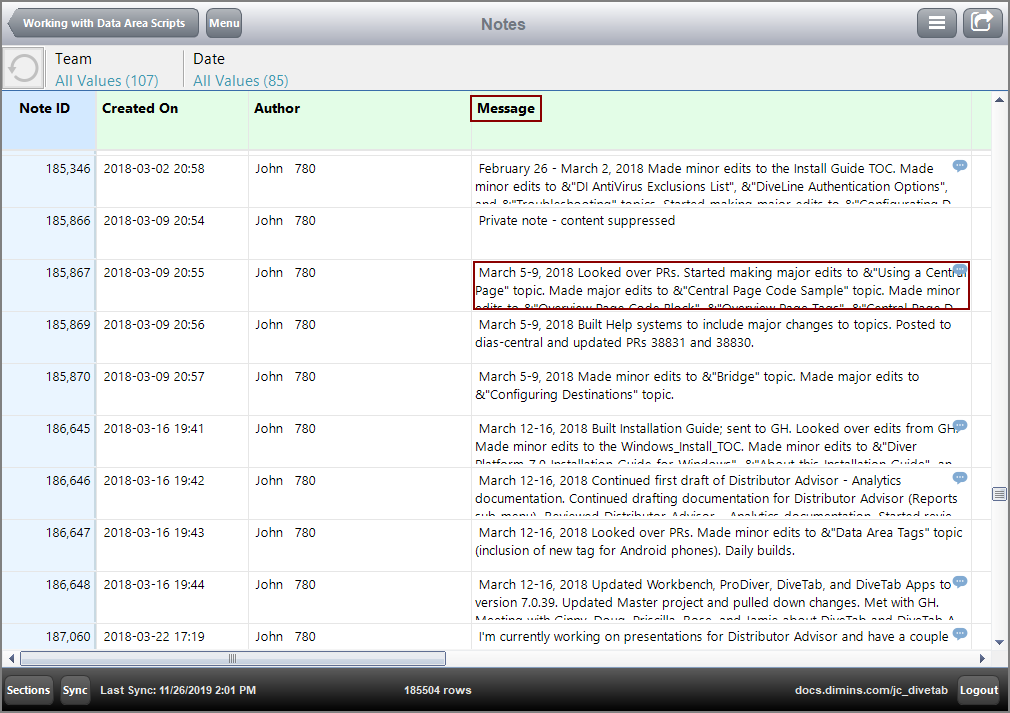
NOTE: Message is a dimension, with the dimension value being the message content.
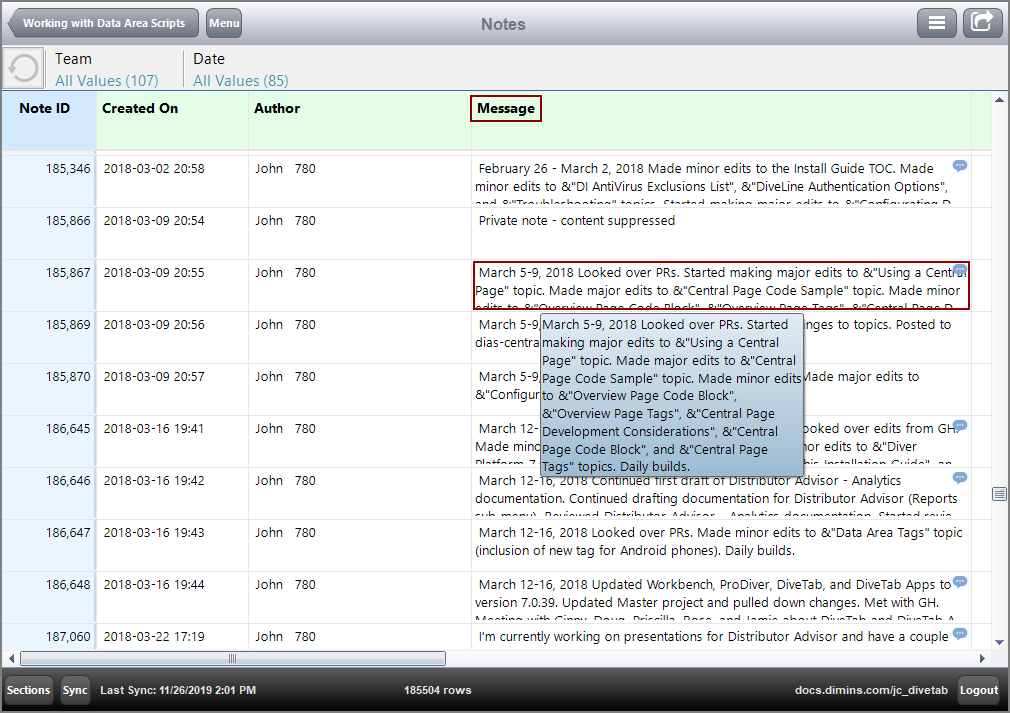
You can point to the text for a tooltip preview.
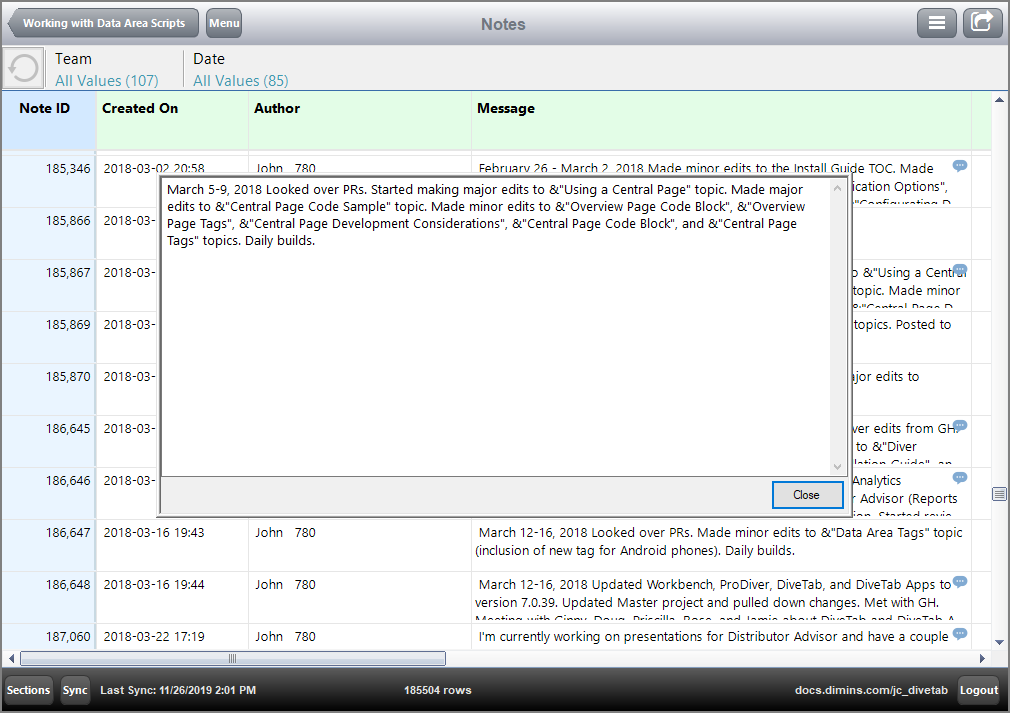
You can also click the ellipses button,  , to view the full text.
Here is the example in the code for the column.
  text "Message" column = "note_message" {
    large-text-display
    width 300
    link {
      web-page column = "note_link"
    }
  }
The large-text-display attribute indicates that the content is hidden.
In the page type block, use the row-height attribute to specify the number of rows that appear. The default number of rows is 1.
Here is an example of the full code block for the page.