After creating a DivePort instance for DiveTab, you can create a DiveTab connection and project.
To define a DiveTab connection on the server:
- Open Workbench.
- Select File > Open Connection.
- If needed, bypass any Quick Connections by clicking on the Connection Manager box on the right.
-
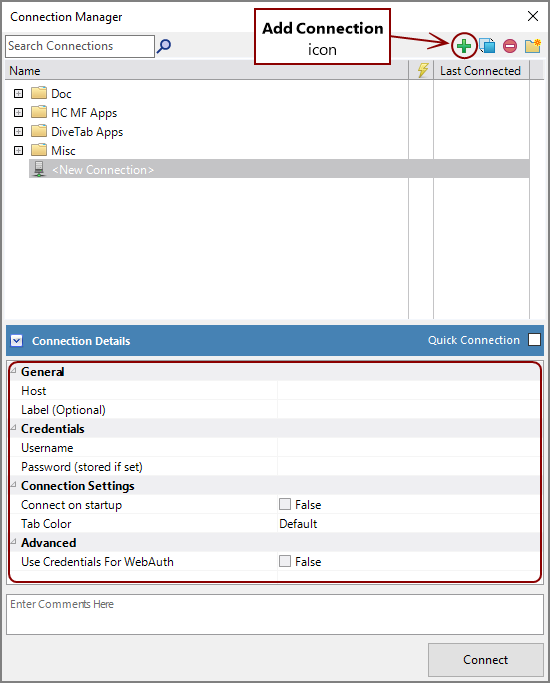
On the Connection Manager, click Add Connection (the green plus sign).
-
Enter the
https://docs.dimins.com/jc_divetab.
Make sure to include a port number where necessary. For example: https://<server>:<port>/<divetab portal>
-
Specify a Label, such as DiveTab Portal.
NOTE: This step is optional, but having a label helps keep names consistent.
-
Enter a User and Password.
NOTE: This step is optional, but by providing the user and password you can connect without entering your credentials every time. Alternatively, you can enter just your username, and you are prompted for your password when you connect.

-
The
 Open Project dialog box displays.
 -
Click Create New Project.
The
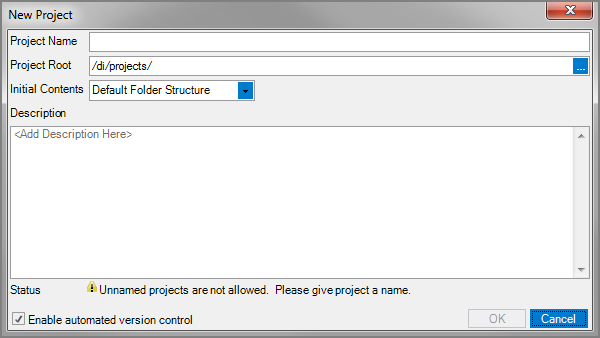
New Project dialog box opens. -
In the New Project dialog box:
- In the Project Name box, enter a name for the project.
- Notice that Project Root appends the name used to the default location (change if required)—for example:
/di/projects/new_divetab. - In the Initial Contents list, select Default Folder Structure to create a set of default folders for the project. See About DiveTab Projects for more information.
- Add a project description.
- Ensure that the Enable automated version control check box is selected (default) to create checkpoints of project files.

-
Click OK.
The
DiveTab project is created and displays the default folders in Workbench Explorer.


After you create the DiveTab connection and project structure, you can create a DiveTab module. For more information, see Creating the Initial DiveTab Module.