If a cBase includes multiple time periods, it can often support use of time series. Because this function generates additional columns, you might want to define an expand set to improve the user experience. This procedure walks through an example.
-
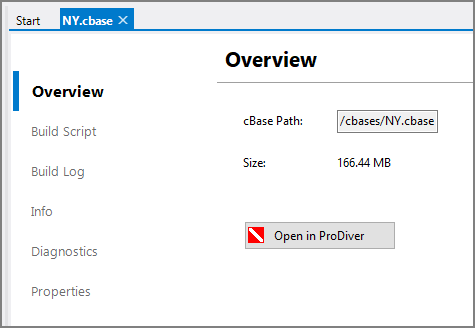
In your Workbench project, identify the cBase and right click to select Open with > cBase Viewer.
A
 tab for the cBase opens.
As needed, examine the Build Script or use the Open in ProDiver option to verify column names.
-
In the Workbench Explorer pane, right-click the appropriate folder and select New > cPlan.
A New cPlan.cplan tab opens.
-
Rename the file. For example, basic_timeseries.cplan.
-
Edit the cPlan to create a simple time series. For example, name the cBase, specify a few dimensions, and use the time-series block with only a few options. Here is an example of a
cPlan using a time-series block. -
Click on Run from the Workbench menu, or use Ctrl+R, to run Spectre with the cplaninfo option.
The Output displays in Workbench.
-
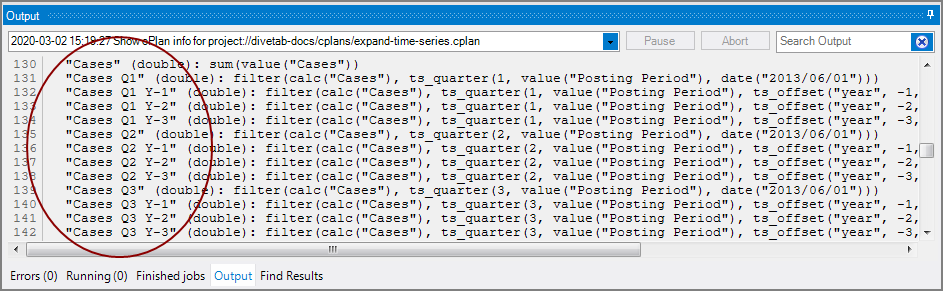
Examine the Output to verify the new column names. Here is an
example of the Output. -
Locate the appropriate divetab script with a data-area where you want to display these new columns.
-
Add a definitions block with a column-set with nested expand blocks for the first two quarters. Here is an
example of a definitions block. -
Add or edit a report-page block so it uses the new column-set. Here is an example of a
report-page using a column-set. -
Save the divetab script and run a test, making sure to Sync before testing.
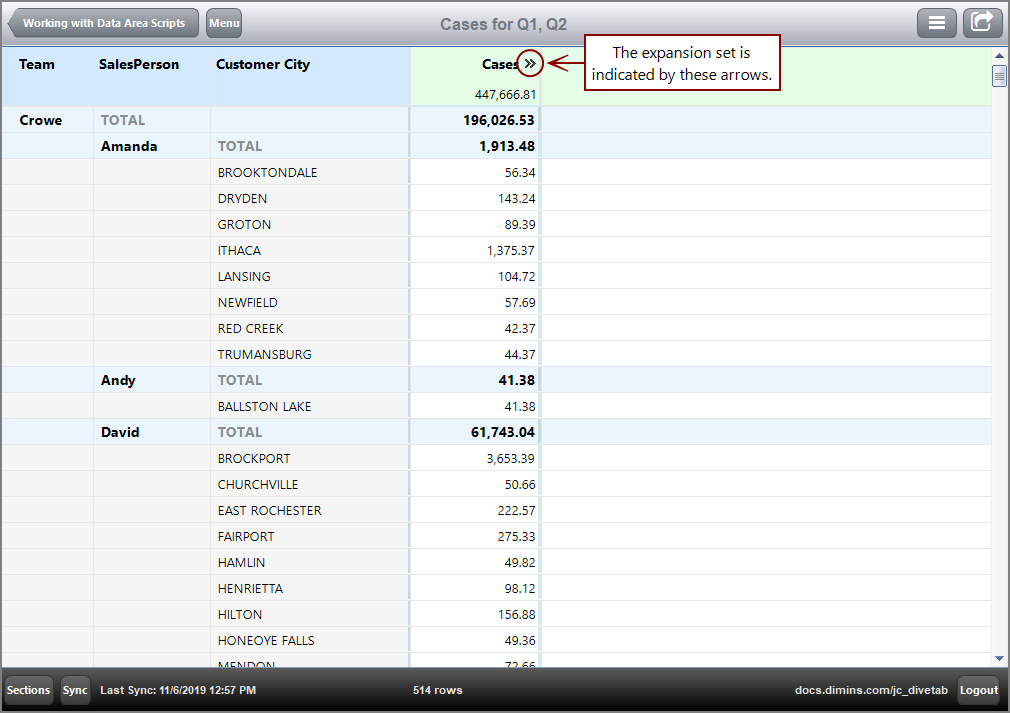
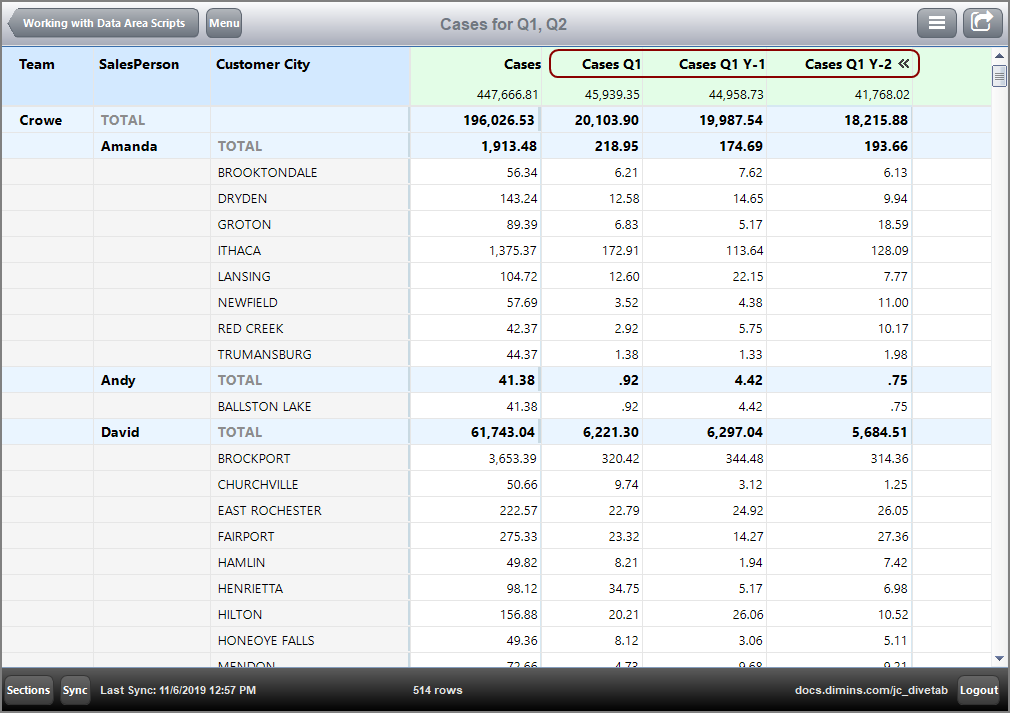
Here is the
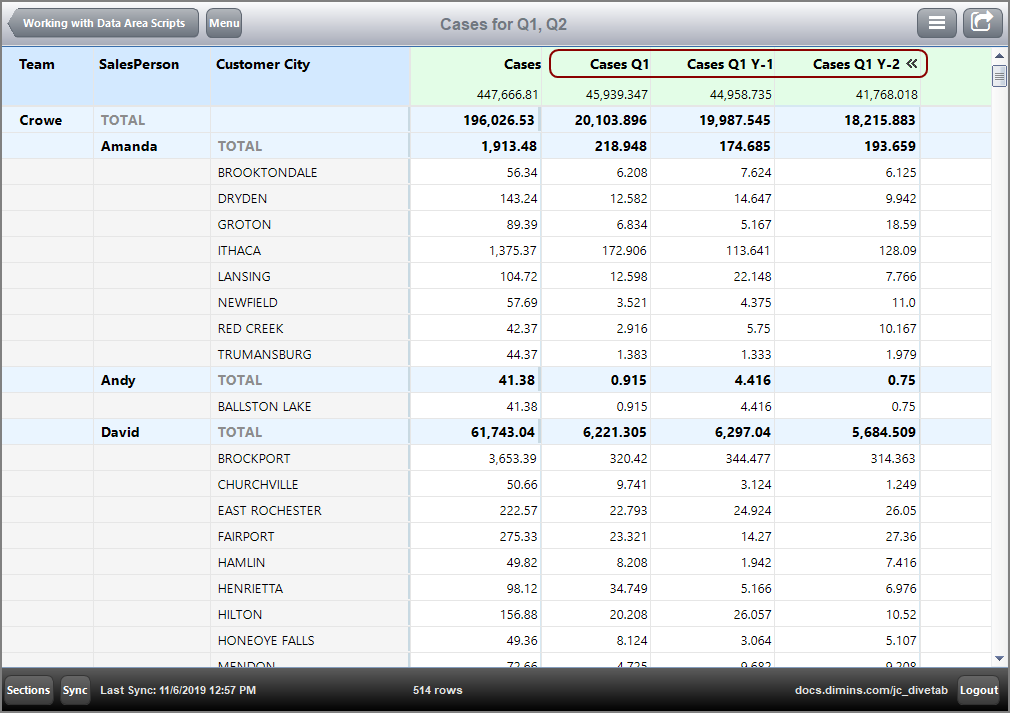
resulting report page.Here is the report page
with columns expanded. -
Add formatting to summary values and change column headings if needed. Here is an example of
text columns with formatting. -
Save the script, return to the client and Sync.
Here is the
result of the formatted report page.
See also: