The default tab, when opening Workbench, is the Start Page tab. This topic describes the Workbench interface, and what you can do from the Start Page tab. The numbers below reference the numbers in the sample graphic.
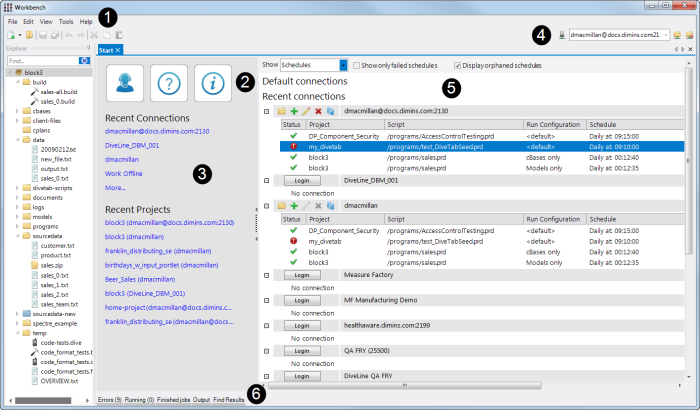
From the Start Page tab you can explore:
Menus and command buttons (1)—Access menu and button commands. Command availability is context sensitive—a command is only available if the current context allows usage (see Workbench Menu Commands).
Buttons (2)—Click buttons for information about:
- Support—Open the Dimensional Insight Support Contact information website.
- View Help—Display the Workbench Help system in the default browser.
- About Workbench—Display the About dialog box for version information for DI software.
Quick Start Panel (3)—Open Recent Connections and Recent Projects. Provides a listing of your most recent connections and projects. Use the X that appears when you place the cursor over a link to remove it from the list.
Server Connection and Information (4)—Access current connection information if connected (place the cursor over the server icon left of the connections list for information on the open connection), open or close connections (server folder icons right of the connections list), or switch between open connections (connections list).
Schedules (5)—Displays a listing and status for all scheduled Production scripts on each open DiveLine connection (see Scheduling Production Scripts).
Status Bar (6)—Access detailed information about scripts run and open files in the Main Window Space (see Status Bar).
NOTE: If the Start Page tab becomes hidden because you have many open tabs or have closed it, you can always return to it by clicking View > Show Start Page.