Using The Archive Feature
The Workbench Explorer has Archive and Extract context commands to create and extract compressed files. The following archive formats are supported:
Zip, GZip, BZip2, Tar, Rar, LZip, XZ, 7Zip
 Archiving a File or Folder
To archive a file or the contents of a folder in a project:
- Open your project and select the file or folder to be archived.
-
Right-click and select Archive from the context menu.
A Save File dialog box displays.
- Navigate and select a location for the zip file.
-
Enter a name in the File Name text box and click Save.
If appropriate, the Running sub-tab displays a progress bar as the file or folder is being compressed.
- When the archive process completes, you can locate the zip file in the designated location.
Archiving Multiple Random Files
To archive a series of random files in a project:
- Open your project
-
Ctrl-click the files to be archived, and without releasing the Ctrl key, right-click and select Archive from the context menu.
A Save File dialog box displays.
- Navigate and select a location for the zip file.
-
Enter a name in the File Name text box and click Save.
If appropriate, the Running sub-tab displays a progress bar as the files are being compressed.
- When the archive process completes, you can locate the zip file in the designated location.
Extracting Archived Files
To extract the contents of an archive file:
- Open your project and select the archive in the Workbench Explorer pane. The icon to look for is:
 .
. -
Right-click and select Extract from the context menu.
A Browse for folder dialog box displays.
- Navigate and select a location for the zip's contents. If you want the contents in a separate folder, click Add Folder.
-
Click OK.
If appropriate, the Running sub-tab displays a Status and a Progress bar as the archive is uncompressed.

- When the extract process completes, you can locate the extracted contents in the designated location.
Viewing Archived Files
To examine an archive file:
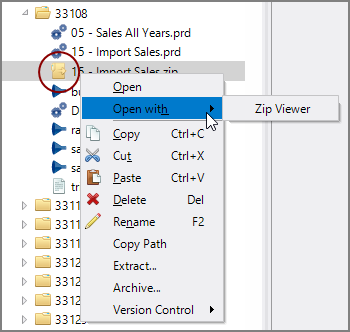
- Open your project, then locate and select the archived file in the Workbench Explorer pane. The icon to look for is:
-
Right-click and select Open with > Zip Viewer from the context menu.
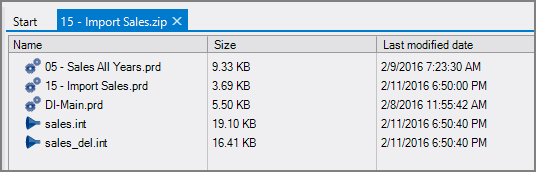
A tab opens on the right showing the contents of the archive. For example: