Many consultants have a very extensive list of connections that is hard to recreate.
 Exporting Connections
Prerequisites: Be sure you can access a password manager to store a generated password, as well as a location where you can save the connections file for later retrieval.
-
Open your password manager.
-
Open Workbench.
-
Select File > Open Connection.
If Quick Connections display, proceed to the Connections Manager.
-
At the bottom left of the Connections Manager dialog, locate and click on the Export connections to file icon
 .
. -
The Save File dialog displays.
Accept the defaults or choose another name and location. Take note of each so you can retrieve the file later.

-
Click Save.
The Generated Password dialog displays.

TIP: Select the View check box to view the password.
-
Click Copy and save the encrypted password to your password manager.
-
Click OK.
The dialog box closes.
Your Workbench connections are now saved outside of Workbench to your chosen location in an encrypted file, and the password is stored in your password manager. The encrypted file can now be opened in another instance of Workbench or moved to a new machine to be imported.
Importing Connections
After exporting your Workbench connections to a secure file, you can import them in another instance of Workbench. The import process differs depending on if you already have connections in your Workbench.
Prerequisites: Be sure you have access to both the encrypted connections file and the password.
Importing with no existing connections
-
Open Workbench.
-
Select File > Open Connection.
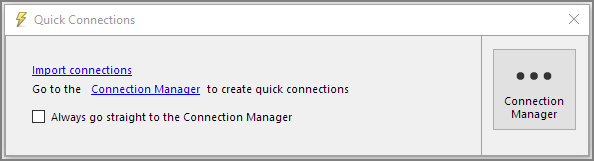
The Quick Connection dialog displays.
-
Click Import Connections.
The Open File dialog displays.

-
Navigate to and select the encrypted connections file.
-
Click Open.
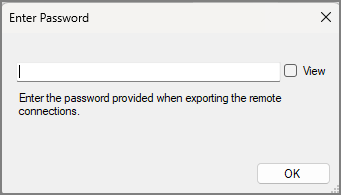
The Enter Password dialog displays.
-
Copy the saved password from your password manager and paste it into the text box.
TIP: The View check box toggles between the mask and the password.
-
Click OK.
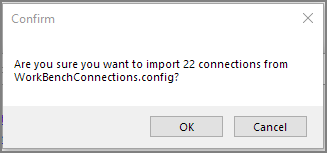
A confirmation dialog displays.
-
Click OK to import all connections.
The Connection Manager populates with the saved connections.
Importing with existing connections
-
Open Workbench
-
Click File > Open Connection.
Depending on your settings, either the Quick Connections or Connection Manager window opens.
-
If the Quick Connections dialog box opens, click Connection Manager. Otherwise, continue to step 4.

-
The Connection Manager window opens.
-
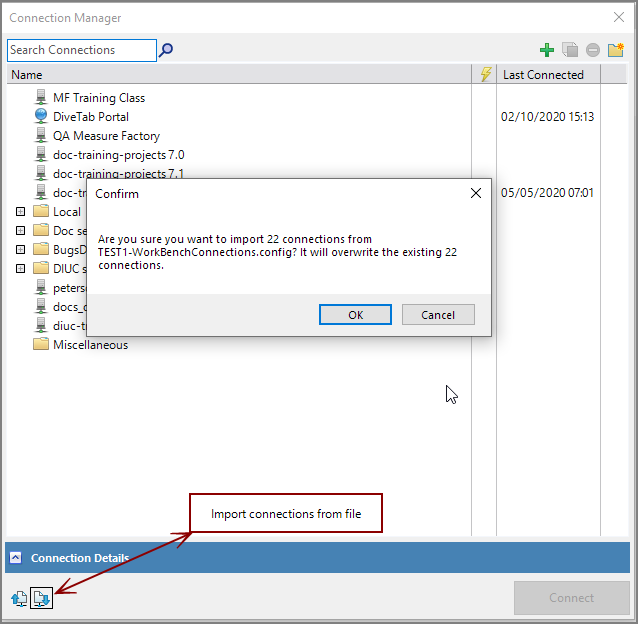
Click the Import connections from file icon
 .
.The Open File dialog displays.
-
Navigate to and select the encrypted connections file.
-
Click Open.
The Enter Password dialog displays.
-
Copy the saved password from your password manager and paste it into the text box.
TIP: The View check box toggles between the mask and the password.
-
Click OK.
A confirmation dialog displays.
-
Click OK to import all connections.
The Connection Manager populates with the saved connections.