Adding Auxiliary Measures
This procedure applies to Workbench 7.1(20) and later. In earlier versions, you can add auxiliary measures by editing the factory configuration file using a text editor.
To add an auxiliary measure:
-
On the Measure Factory Editor page, double-click the measure to which you want to add an auxiliary measure.
On the right, the detail pane opens to display information about the measure.
-
If necessary, expand the Data section on the detail pane.
-
Next to Auxiliary Measures, click the Add icon
 .
. The screen updates to show details for the new auxiliary measure. On the detail pane, it appears as NewAuxMeasure1 of <Parent Measure Name>.
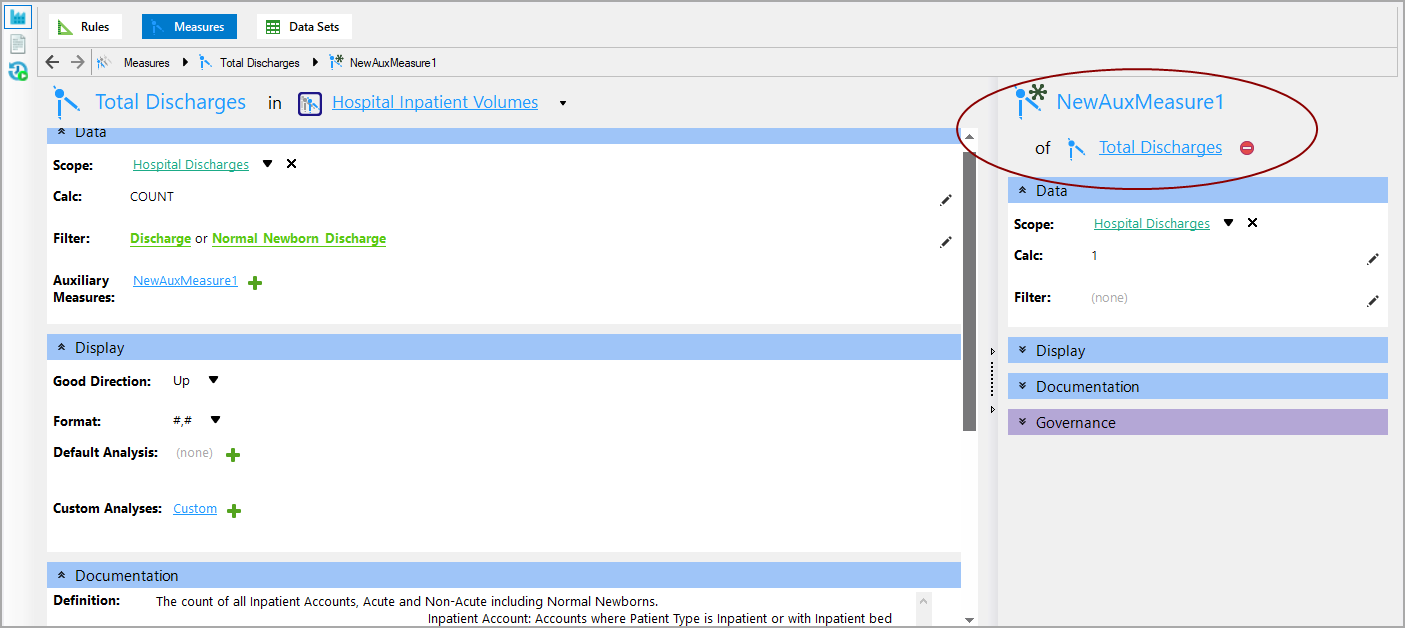
-
Click NewAuxMeasure1, enter a name for the auxiliary measure, and then click the Check icon
 .
.NOTE: The auxiliary measure name must be unique within the measure.
The Auxiliary Measure is added to the main display.
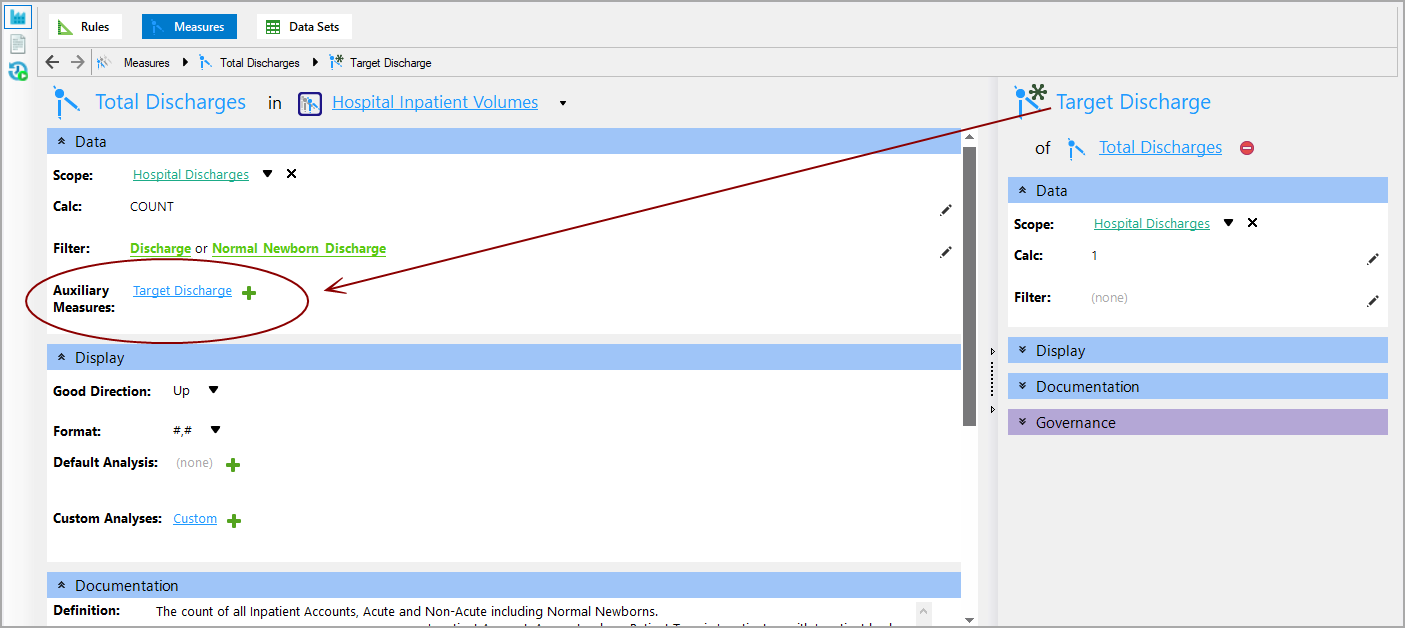
-
On the detail pane, you can:
-
Edit the Scope
-
Enter a Calc
-
Add a Filter
- Enter Display information
- Enter Documentation information
- Enter Governance notes if enabled
-
- Save the file.
Mentioned in: