To help facilitate development and testing efforts, DiveTab can keep track of up to 25 different target hosts for your implementations. Once you have configured your iPad application to connect to the DiveTab server, you can easily switch between the demo site and your test and production sites.
The following procedure describes how to access and update the configuration settings for DiveTab on your iPad.
-
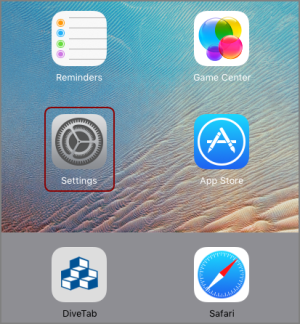
From the home page of your iPad, locate and tap the icon labeled
 Settings.
 - In the Settings panel, scroll down until you find the DiveTab option.
-
Tap DiveTab to open the
DiveTab panel. -
In the Select Host box, enter another URL for a different DiveTab server.
NOTE: Include the port number where necessary.
- Close the Settings window to save your changes.
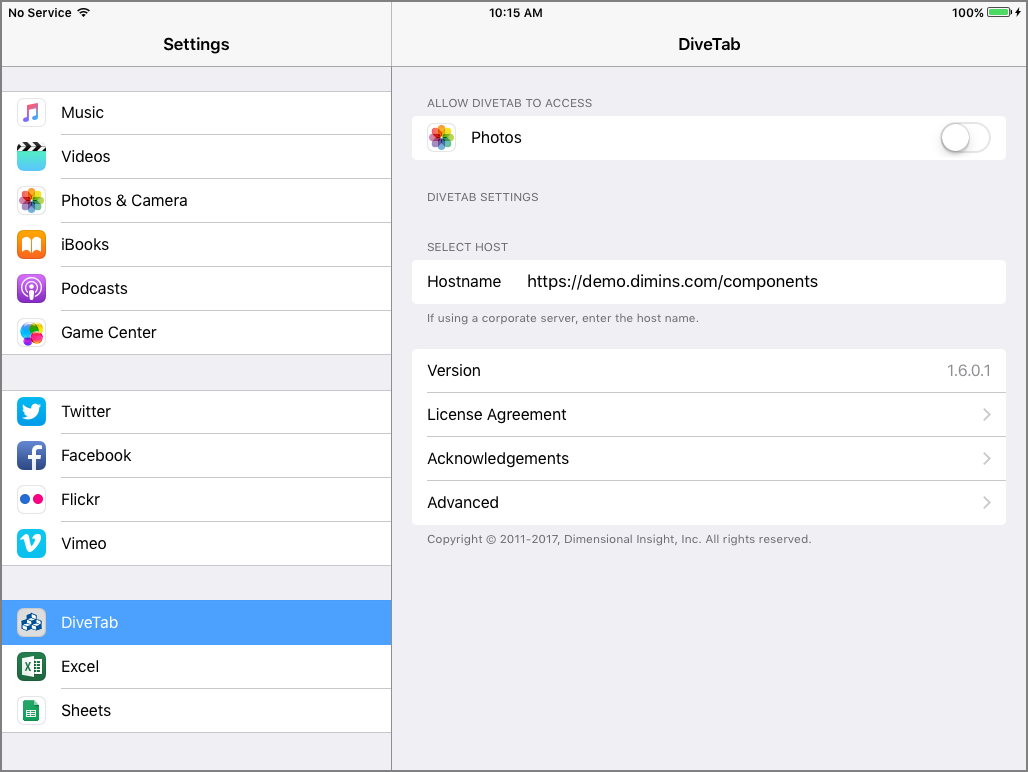
NOTES: The DiveTab panel contains the following attributes and options.
- Photos—Allows DiveTab to access Photos on the iPad.
- Hostname—Initially blank, use this field to specify an alternative URL for a DiveTab server. This is the path to the primary host.
- Version—Displays the current version of the DiveTab application loaded on this device.
- License Agreement—Displays the software license agreement.
- Acknowledgments—Lists copyrighted materials that require acknowledgment in the source code.
-
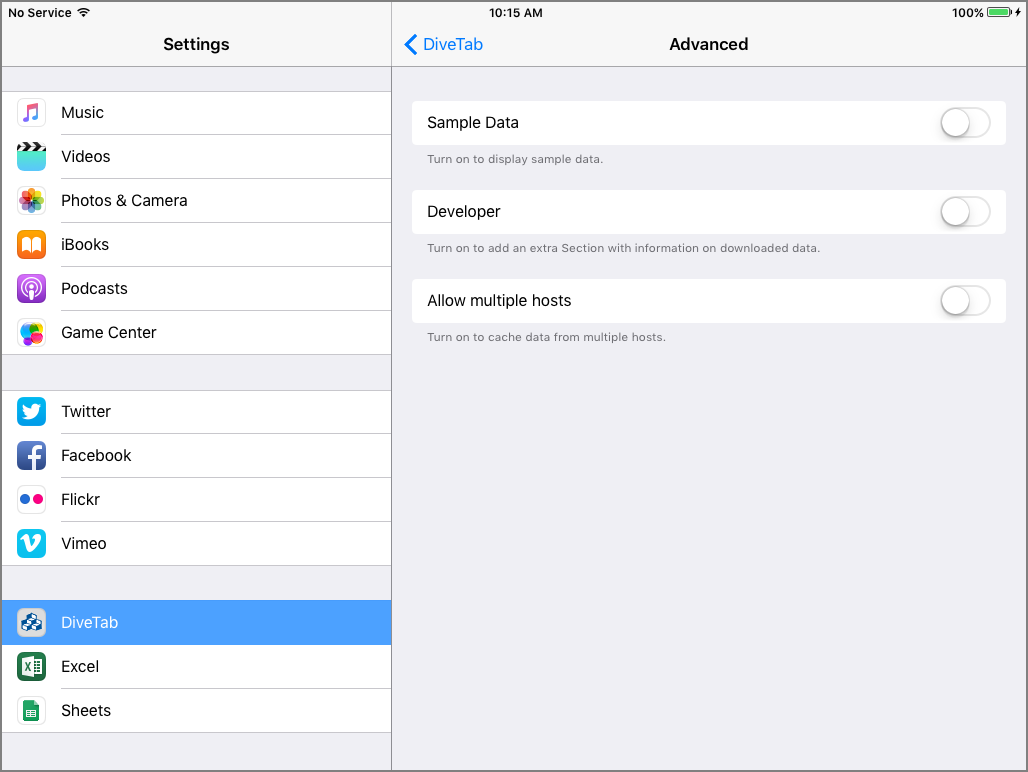
Advanced—Opens the Advanced panel with four on/off options.
- Sample Data—Turns on to display sample data.
- Developer—Adds an extra Section with information on downloaded data.
-
Allow multiple hosts—Allows the caching of data from multiple hosts.
NOTE: As of iOS 10.3, Allow self-signed hosts is no longer an option. If a self-signed host is required, there are several ways to install a self-signed root certificate on the iOS device.
CAUTION: Allowing self-signed certificate is not recommended.
- Use Mobile Device Management (MDM).
- Send an email with the certificate to the user, open the email on the device, and install the certificate.
- Use the Safari web browser to access the certificate on a website, and install the certificate.
- Use Apple Configurator 2.
For iOS 10.3 and later, the user has to enable trust for the certificate with the Settings application, under General > About > Certificate Trust Settings.
The user can remove the certificate with the Settings application, under General > Profiles.
Here are the
Advanced panel options.