Setting Workbench Preferences

The Preferences dialog box allows you to customize Workbench default behaviors.

To set Workbench preferences:

  1. Click Tools > Preferences.

    The Preferences dialog box appears.
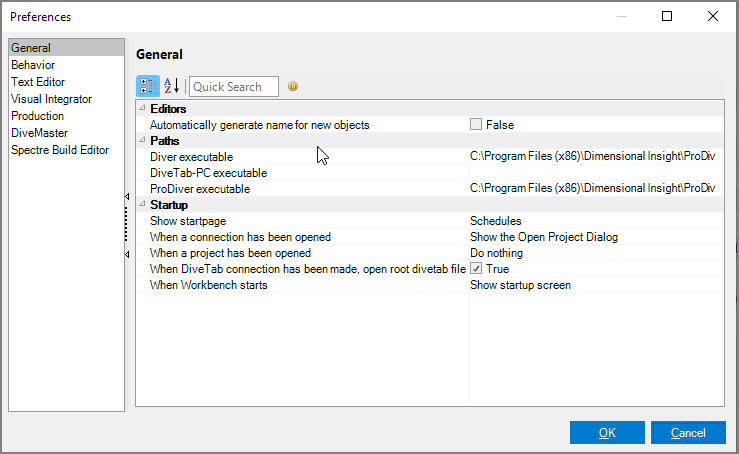
    General preferences for Workbench

  2. Select a category in the left pane.
  3. Make adjustments in the right pane.
  4. Click OK to save changes.

Workbench Preferences Dialog Box

Category Settings
General
  • Editors—Select auto generation of object names in scripts (applies to VI, Spectre, and Production scripts).
  • Paths—Set paths to associated executable files.
  • Startup—Customize how Workbench starts up. For more information, see Startup Options.
Behavior
  • Content—Customize how the interface behaves with content, such as turning off initial comments in scripts, setting it to show when a scheduled script has any warnings, and whether to keep, remove, or ask about unlinked schedules.
  • NOTE: Initial Comments guide the user through the process of creating a new script file. If turned off, files default to having just the top level tag. This feature is useful for advanced users that no longer need hints.
  • Interaction—Customize notifications for failed jobs and saving credentials. Failed jobs default to display an error pop-up dialog box when foreground job fails.For more information on alternative notifications used if you turn this off by setting it to False, see Job Notifications.
  • Save—Customize how Workbench saves modified scripts, and the behavior when running.For more information, see Running Unsaved Scripts.
  • UI—Customize the initial state of the left panel of the Startpage at start up, how the connection tree displays, and the border size between Workbench interface parts (defaults to five pixels).
Text Editor
  • Input—Set the edit option that allows typing of Asian languages. Use of an Input Method Editor (IME) defaults to False. Once set to True, close and reopen editors for the change to take effect.
Visual Integrator
  • Behavior for Runs—Set and turn on/off input/output limits, run and save options.
  • Behavior for Tests—Set and turn on/off input/output limits, test inclusions/exclusions, and Qual string options.
  • Functionality—Customize how Workbench handles Visual Integrator scripts, including naming, paths, word wrap, encoding, ODBC, and SQL connections.
  • Interface—Customize interface elements, including auto-save time, backups, tooltip displays, and sorts for functions and data.
  • Misc.—Configure an automated naming scheme for tasks.

For more details, see Visual Integrator Preferences.

Production
  • Functionality—Set how Production works with existing parameters.
DiveMaster
  • Dialogs—Customize dialog box behaviors for aliases, columns, and categories.
  • Functionality—Set file encoding defaults.
Spectre Build Editor
  • Misc—Set whether or not to have the cBase open directly in ProDiver when a Spectre Build script successfully completes (defaults to False).