DI recommends, as a best practice, that you stage your project development into three distinct phases:
- Dev—For project development.
- QA—For testing.
- Live—For general end-user access.
Diver Platform 7.0 projects can be moved through the cycle of development, testing, and live production.
You can move you projects either on the physical servers (if you have access) or within Workbench.
These procedures take you through moving an existing project named Northeast Sales from a testing (QA) project (ne-sales-qa) to a live project (ne-sales-live).
 Moving projects on the same DiveLine server
With this method, you use the Copy Project feature to create a new project ne-sales-live that is a copy of the testing project ne-sales-qa.
To use the copy project feature:
-
Click File > New > New Project.
The New Project dialog box opens.
-
From the Initial Contents list, select Copy Project.
-
In the Project list, select the project to copy.
In the example screen, this is the Northeast Sales testing project (ne-sales-qa).
-
In the Project Name, type a meaningful name and notice that the project name automatically populates the directory name in the Project Root field. Enter a comment in the Description field.
In the example screen, this is Northeast Sales live project (ne-sales-live).

-
Click OK.
The
new project (ne-sales-live) is created.NOTE: With this method, any aliases, mailing lists, email objects, and access control settings are maintained.
- If appropriate, you can delete the older project (see Uninstalling Projects).
 Moving projects between DiveLine servers
With this method, you use the copy and paste commands in Workbench.
To copy the testing project to a new server as the live project:
-
On the new server, click File > New > New Project.
The New Project dialog box opens.
-
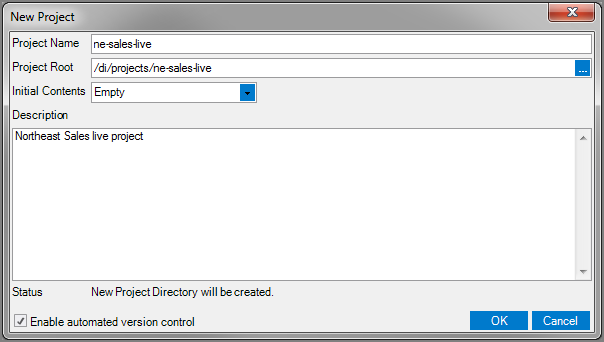
Type a name for the new project. For example, ne-sales-live and notice that the name is appended to the Project Root field.
-
From the Initial Contents list, select Empty. Optionally, add a comment in the Description field.
-
Click OK.
An empty project is created.
- From the connection for the testing project (ne-sales-qa), copy the contents of the project to the clipboard. NOTE: Do not include any aliased folders in this copy operation.
-
Return to the server with the new project and paste the contents into the new project.
The
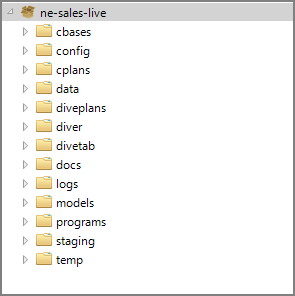
new project (ne-sales-live) is created. - If appropriate, you can delete the older project (see Uninstalling Projects).
NOTE:
- With this method, no additional project information is maintained. That is, any alias, mailing lists, email objects, and access control settings need to be reset.
- If there was an aliased folder in the original copy-and-paste operation, you need to delete the folder because it is just a copy of those files. Best practice is to avoid copying over any aliased folders.
- Copying large project files across DiveLine servers can take some time. You may want to copy one folder at a time.
Moving projects on the physical servers
This example assumes both the testing project (ne-sales-qa) and the new live project (ne-sales-live) are on the same DiveLine server. You can do the same procedure across DiveLine servers.
- On the DiveLine server, locate the project's folder. Typically at C:\di\solution\projects.
-
Create a new folder using the previous project's name appended with a useful indicator added.
For example, create a folder named ne-sales-live.
- Locate the existing testing project folder (ne-sales-qa) and copy the contents of the project to the clipboard.
-
Return to the live project folder (ne-sales-live) and paste the contents of the original project.
A new copy of the project is created and ready for you to bring into Workbench.
- In Workbench, create a new project pointing to this new folder:
Click File > New > New Project.
The New Project dialog box opens.
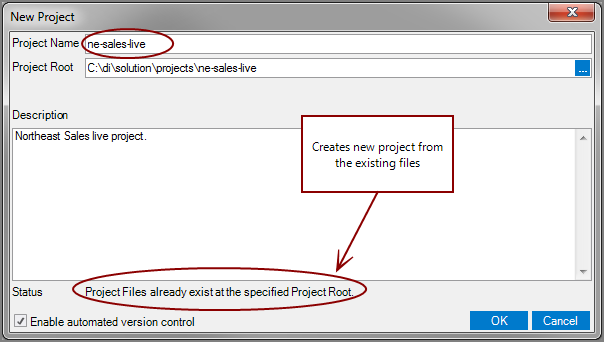
In the Project Root field, click the browse button, select the live folder (ne-sales-live) you just created on the server, and click OK.
In the
New Project dialog box, notice that the Project Name automatically populates with the folder name.Note that the Status field indicates that the existing files in that folder will be used to create this project.
Click OK.
The project is created.
- If appropriate, you can delete the older project (see Uninstalling Projects).
NOTE: With this method, no additional project information is maintained. That is, any alias, mailing lists, email objects, and access control settings need to be reset.