To create a report palette:
-
On the ProDiver menu bar, select
A blank Report Palette opens in the dive window.
-
Name the report palette:
-
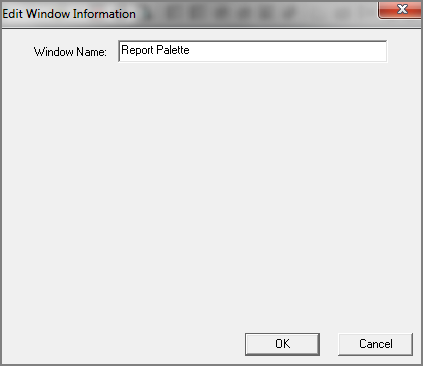
On the menu bar, select Display > Edit Window Info.
The Edit Window Information
 window opens, showing Report Palette as the Window Name.
 - Enter a new Window Name, and click OK.
-
-
On the Report Palette window, click the Unlock icon
 .
.- The report palette editing tools appear on the Report Palette toolbar.
- The window name that you entered in step 2 appears as the title.
- Today's date appears in the top right side of the report palette.
- The palette is populated with a grid of 40 rows and 10 columns.
- The report palette editing tools
- To edit report palette breaklevels, see Editing Report Palette Breaklevels.
- To edit report palette cells, see Editing Report Palette Cells.