Window dive reference strings capture the dive window information for use as a report link in the report palette or report view. You can copy window dive references from an active dive window, and then paste them in a report palette cell item definition box.
NOTE: You must start from a cPlan, model, or DivePlan rather than a DiveBook or an existing marker file.
To copy window dive references to a report palette:
-
In ProDiver, open the cPlan, model, or DivePlan that contains the information that you want to copy.
-
Dive on the data to create a display that contains the information that you want to copy. The active dive window can be a tabular display, report, map, or chart.
-
Right-click anywhere on the active dive window, and then on the shortcut menu, click Copy Window Dive Reference String.
A Copying to Clipboard confirmation message opens, displaying the reference string.
-
Click OK.
-
Open and Unlock the report palette.
-
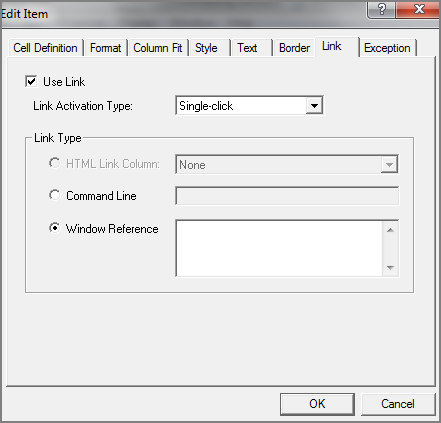
Double-click the cell in which you want to paste the reference string.
The Edit Item dialog box opens.
-
Click the Link tab.
The Link
 dialog box opens.
 -
Select Use Link.
-
Optional. Select a Link Activation Type from the list. Choices are Single-click or Double-click.
-
If needed, select Window Reference.
-
Click in the adjacent text box and paste in the window reference by pressing Ctrl+V or right-click in the text box and then select Paste from the shortcut menu.
-
Click OK.