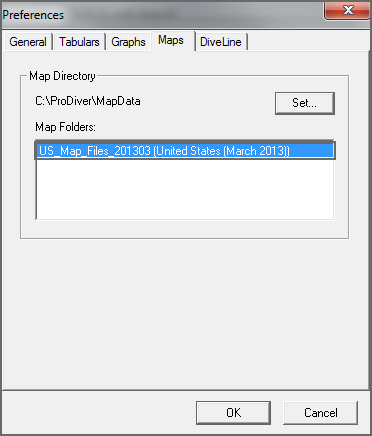
To use maps, you must load map data files to a map directory on your local system and set the file location in ProDiver.
NOTE: To obtain a compressed file of US map data, request a copy from DI Technical Support at [email protected] (US), or [email protected] (outside of the US). In addition to creating maps, you can use these files as a template to create custom maps. Alternatively, some third-party software tools can be used if they meet ProDiver format requirements.
You must load all map files on your client machine. If you want to use the lookup model, you must load it to the DiveLine server as well.
To configure the map data:
-
Determine where to place the map directories. For example:
C:\ProDiver\MapData (on your system)
D:\DI_Solution\d1-dataroot\data\MapData (on the server)
- Extract the zipped files to the MapData directory with these options selected:
- All files/folders in archive
- Use folder names
- Start ProDiver.
-
Select Window > Preferences.
The Preferences
 dialog box opens.
 - Click the Maps tab.
-
Click Set, browse to the location of the MapData folder, and then click OK.
- Click OK to close the Preferences dialog box.