The Text Item in ProDiver enables you to add and configure a text string as the title of the report. When you convert a tabular to a report, it does not contain a report title. Besides adding a Text Item, you can also add a report title by typing the report name in the Title box of the  Default Report dialog box (Display >

If you add a report title to the baseline report using the Title box in the Default Report dialog box, ProDiver centers the text string at the top of the report.
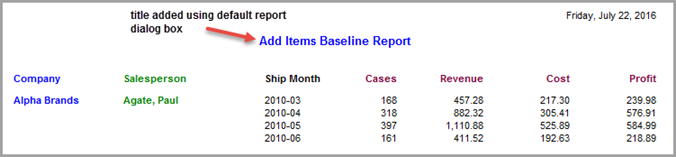
This topic describes the steps to add and configure a report title by adding a Text Item to the top left corner of the report.
Complete the following steps:
- Open the marker file containing the baseline report with deleted items. Alternatively, open the marker you saved from Adding a Date as a Text Item to add a title to the baseline report.
- To display the report in edit mode, click the Lock/Unlock icon.
- To open the Add Item dialog box, click the Add Item icon and complete the following actions:
- For Item Type, select Text.
- In the empty Text box, enter Add Items Baseline Report.
- On the Breaklevel tab, set the Breaklevel to Page and the Location to Head.
- On the Position tab, set the Column to Page Left.
- On the Style tab, set the Style Name to Report Title.
- Click OK to add the Text Item to the report as a report title.
