About the Position Tab
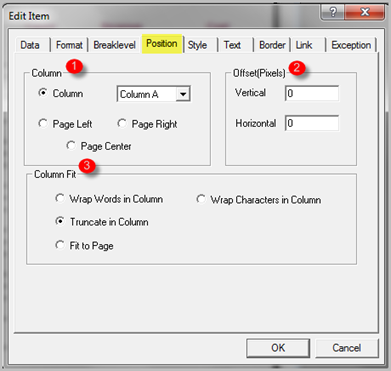
The Edit Item, Position  tab contains the following sections:
- All items within a report must be either in a column or positioned relative to the page. The options in the Column list enable you to place an item in an existing or a newly-inserted report column. The Page Left, Page Right, and Page Center options position an item relative to the page margins. When positioning an item relative to the page margins, also set the Justify > Horizontal option on the Style tab to the same position.
- Offsets an item, either vertically or horizontally, by the number of pixels specified. A positive number in the Vertical box adds space above an item, while a positive number in the Horizontal box adds space to the left of a left-justified item and to the right of a right-justified item. Negative horizontal offsets have no effect. Negative vertical offsets are not supported. To add space below an item, use the Line Spacing option on the Style tab. You can drag an item either horizontally or vertically, however DI recommends that you use the Offset option instead.
- Specifies how to display items that have values wider than the column in which they are positioned.
- Wrap Words in Column wraps the value of an item to a new row in the column when it encounters a space in the value.
- Truncate in Column cuts off a portion of the line string when it reaches the end of the column.
- Fit to Page forces values in a column to fit across the length of the column, whether or not all the text is visible. This option differs from Truncate in Column because words are not cut off, but hidden. To display the hidden words, increase the width of the column.
- Wrap Characters in Column wraps the value of an item to a new row in the column without regard to word breaks.
1 Column
2 Offset (Pixels)
3 Column Fit
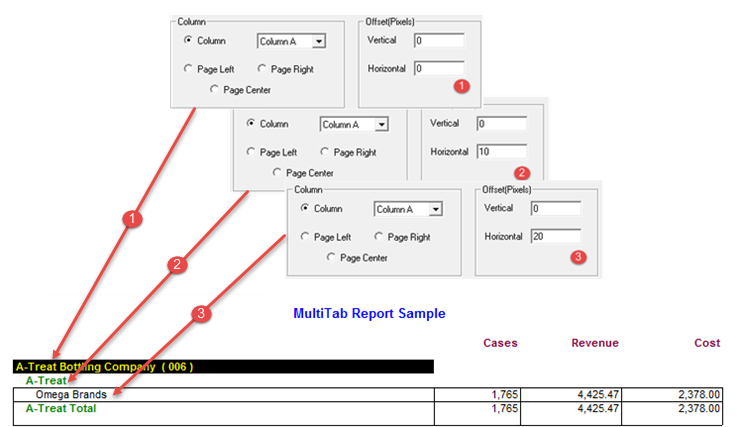
The following image shows how ProDiver configures the Position > Offset (Pixels) > Horizontal option by adding a positive number to create the dimension indents for an Indented MultiTab report style.