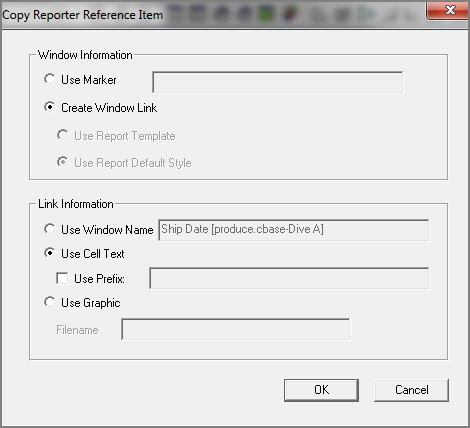
You can copy calculation references and window dive references from an active dive window, and then paste them in a report palette cell item definition box.
TIP: When copying multiple reporter references, consider opening two instances of ProDiver. Open the report palette in one instance, and use the other instance to dive on data and copy the calculation references.
To copy a reporter reference to a report palette:
-
In ProDiver, open the cPlan, model, or DivePlan, or marker that contains the information that you want to copy.
-
Dive on the data to create a display that contains the information that you want to copy. The active dive window can be a tabular display, report, map, or graph.
-
Right-click the item that you want to add to the report palette, and then on the shortcut menu, select
The Copy Reporter Reference Item
 dialog box opens.
 -
Under Window Information, define the source of the window:
-
If you want to open a marker file, select Use Marker and enter the name of the marker in the adjacent box.
-
If you want the window dive reference string to be copied to the reporter reference item, Select Create Window Link.
-
If the dive window is a report and a template was used, click Use Report Template or Use Report Default Style, depending on whether you want the report palette to use the template.
-
-
Under Link Information, define how the link appears in the report palette:
-
Select Use Window Name if you want the report palette to display the name of the dive window.
The name of the window appears in the adjacent box.
-
Select Use Cell Text if you want the palette to display text from the selected cell, and optionally select Use Prefix and enter the prefix text in the adjacent text box.
-
Select Use Graphic and enter a path to the graphic Filename if you want an image to be placed in the palette.
NOTE: The referenced graphic appears in the Head 2 section of the palette.
-
-
Click OK.
-
Open and Unlock the report palette.
-
Right-click the cell in which you want to paste the reporter reference item, and then click Paste Report Item.