Adding Parent Dimension Name and Value Items
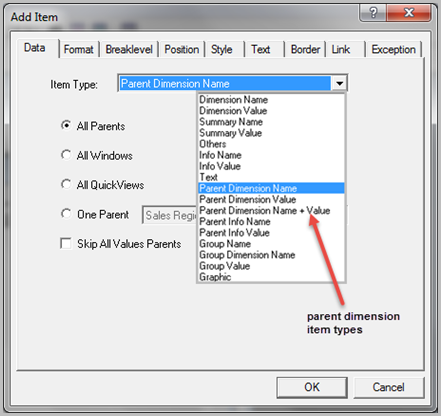
The Items feature enables you to display different combinations of Parent Dimension Name and Parent Dimension Value items and any QuickViews associated with a dive window. Because there can be many parent windows and QuickViews in a complex dive, it might be useful to retain and reference this type of information when converting a tabular.
- All Parents
- All Values
- All QuickViews
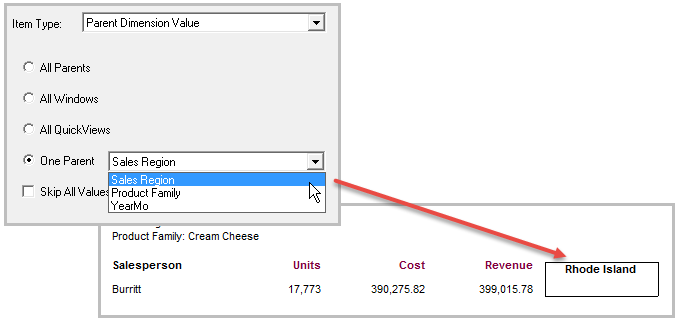
- One Parent
- Skip All Values Parents
Because the focus of this topic is displaying the metadata of a dive, the procedure uses the Focus option to limit the tabular report to a single salesperson (Burritt).
Complete the following steps:
-
Select a server with a project that contains a sales model with dimensions and summaries, such as:
- Sales Region, Product Family, Salesperson, and YearMo
- Cases, Revenue, and Cost
For illustration purposes, this procedure refers to a sales model called demo.drl.mdl.
-
In ProDiver, locate and open demo.drl.mdl.
-
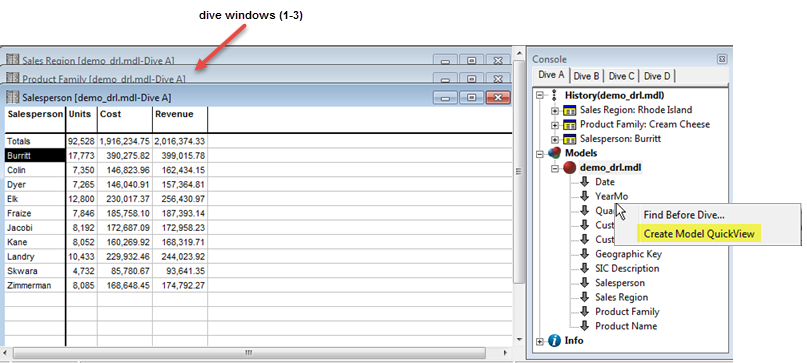
On the Console, double-click Sales Region to open a dive window.
-
Select Rhode Island, and double-click Product Family.
-
Select Cream Cheese, and double-click Salesperson.
-
Select Burritt on the dive window.
-
On the Console, right-click YearMo and
 select Create Model QuickView.
 -
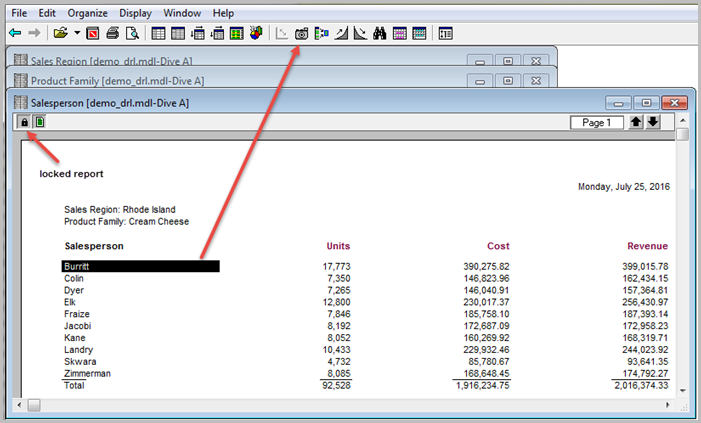
Click the Report icon to open the Default Report dialog box. Accept the default selections, and click OK.
-
In the Locked report view, perform the following actions:
- Select Burritt.
- Right-click YearMo and select Create Model QuickView to add the YearMo QuickView above the dive windows.
-
With
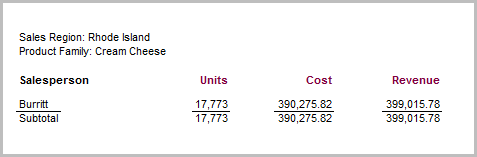
Burritt selected in the Dive window, click the Focus icon so that ProDiver only displays the sales results for Burritt. -
Unlock the report to display the toolbar, and move the Units, Cost, and Revenue closer together.
-
To parse the report results further, perform the following actions:
- Delete the Subtotal text string.
- Delete the summary value overall totals for Units, Cost, and Revenue.
-
ProDiver displays
the base report for adding Parent Dimension Names and Value items. -
To illustrate the results of adding different Parent Dimension Name and Value combinations to the report, perform the following actions in the Add Item dialog box:
- In the Breaklevel tab, set the Dimension to Salesperson and the Location to Body.
- In the Position tab, set the Column to Add Column and Vertical to -20 pixels.
- In the Style tab, set the Style Name to Column Header.
- In the Border tab, select the following: Row Top, Left, Right, and Row Bottom.
-
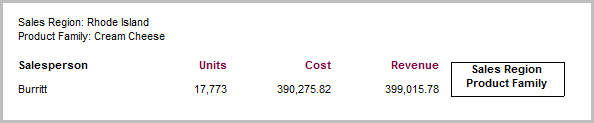
Parent Dimension Name + All Parents
Displays all Parent Dimension Names (Sales Region and Product Family), including any QuickViews (YearMo) associated with the dive window.

-
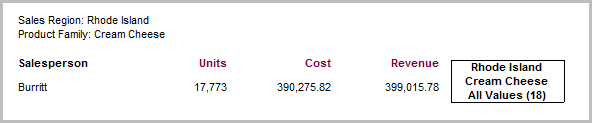
Parent Dimension Value + All Parents
Displays
all Parent Dimension Values (Rhode Island and Cream Cheese) and the number of QuickView values (18) associated with the dive window. -
Parent Dimension Name + All Windows
Displays a list of
all dive window names (Sales Region and Product Family) in the path of the current dive, excluding any QuickViews associated with a window. -
Parent Dimension Value + All Windows
Displays a list of
all Parent Dimension Values (Rhode Island and Cream Cheese) in the path of the current dive, excluding any QuickViews associated with a window. -
Parent Dimension Name + All QuickViews
Displays a list of
all QuickView names (YearMo) associated with a dive window. -
Parent Dimension Value + All QuickViews
Displays a list of
all QuickView values (18) associated with a dive window.Notice that Parent Dimension Names and Values do not display when selecting the All QuickViews property.
-
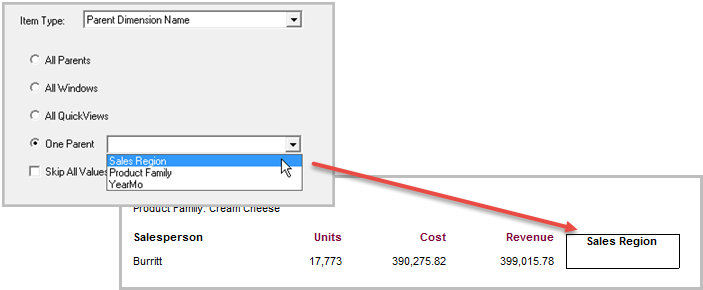
Parent Dimension Name + One Parent
Allows you to display
one Parent Dimension Name (Sales Region) from a list of parent dimensions. -
Parent Dimension Value + One Parent
Allows you to display
the selected Parent Dimension Value (Rhode Island) from a list of Parent Dimensions. -
Parent Dimension Name + Skip All Values Parents
The Skip All Values Parents property, when selected with either the Parent Dimension Name or Parent Dimension Value item, does not display any values in the report. If it is selected but neither Parent Dimension Name nor Parent Dimension Value is selected, this property does not have any impact on what displays in the report.
-
Parent Dimension Name + Value
Combines the
Parent Dimension Name and Value into a <name:value> pair separated by a colon.
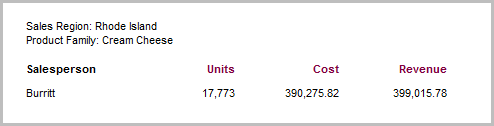
The following list describes and displays the information ProDiver includes in an unlocked report when you select one of the combinations of a Parent Dimension Name or Parent Dimension Value items with different property values in the Add Item dialog box.