Selecting a Multi-Dimension MultiTab Report Style
If your final dive window is a MultiTab tabular with three or more dimensions, you have a number of options for converting the dive into a MultiTab style report. The available Report Style options are:
 Tabular MultiTab
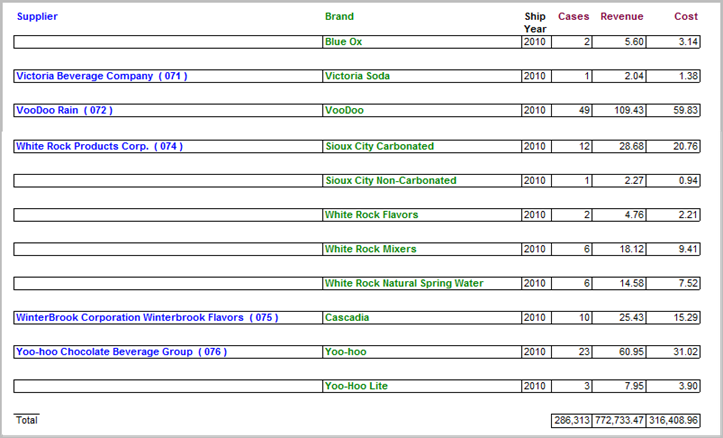
Displays dive information in the same order as the tabular dive window. Dimension headings and values appear to the left and summary headings across the top of the report. The name of the first dimension (Supplier) appears in the leftmost column heading. Below the first dimension heading, the names of the dimension values appear. The name of the second dimension (Brand) appears in the column to the right of the first dimension. All of the values for the second and third dimensions (all the Brands for a given Supplier and Ship Year) appear in their individual columns with row totals for Cases, Revenue, and Cost. There are no subtotals, but a total line for all summary column headings appears at the bottom of the report.
Paged MultiTab:Bottom
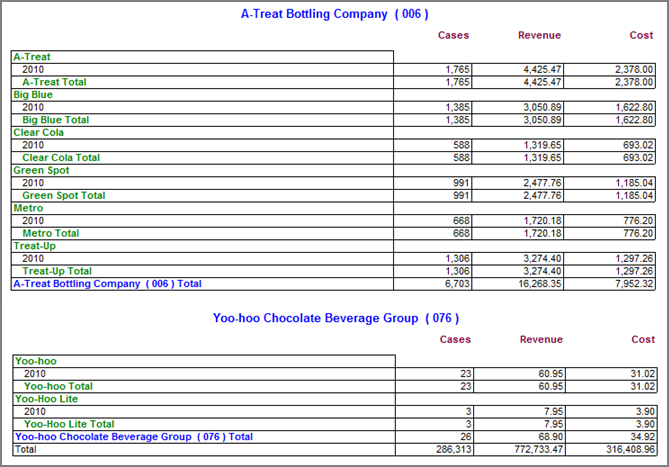
Displays the dimension values of the first dimension selected (Supplier) as a centered heading on an individual page, with the rows representing the dimension values for the second and third dimensions selected (Brand and Ship Year). For example, if the first dimension value is A-Treat Bottling Company, its individual rows reflect summary values for Cases, Revenue, and Cost for all of its brands (for example, A-Treat and Big Blue) and Ship Year (2010). A subtotal displays for each supplier and the last page of the report includes an aggregated summary total for all suppliers.
Paged MultiTab:Top
Displays the first dimension as both a centered heading and a total on an individual page. The row values of the second and third dimensions appear in the leftmost column. If the first dimension value is A-Treat Bottling Company and the second value is A.G. Beverage Corporation, the first page of the report displays values for A-Treat, the second page for A.G. Beverage and so on. An aggregated total for all summaries appears at the end of the report.
Indented MultiTab
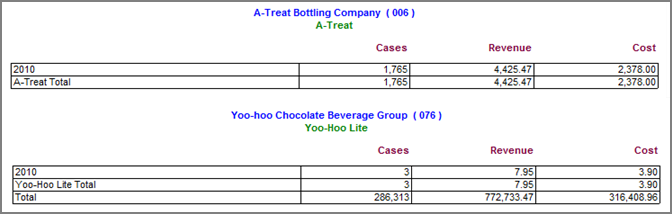
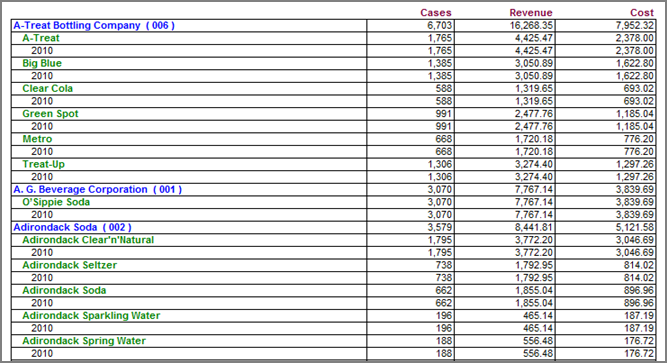
Displays the first dimension value (Supplier) of a multitab on the left side of the page as both a heading for the values of the second and third dimensions (Brand and Ship Year) indented below it and as a subtotal reflecting the cumulative summary values (Cases, Revenue, and Cost) for all brands within supplier. Aggregated summary totals for all suppliers display at the bottom of the report.
Indented Subtotal MultiTab
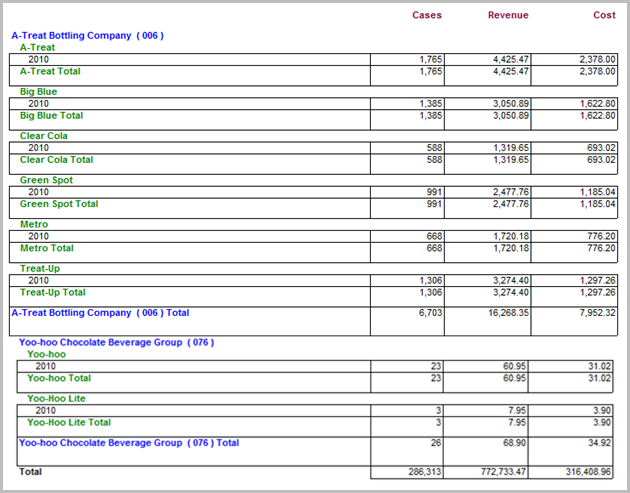
Displays a tabular with indented row totals for the first (Supplier), second (Brand), and third (Ship Year) dimension values selected.
NOTE: The MultiTab report styles described above appear in the following procedure as examples.
The following steps show how to create dive windows with three or more dimensions (Supplier, Brand, and Ship Year) that get converted into standard reports by selecting one of the report styles listed above. This procedure enables you to visualize the formatting impact of choosing from the different multidimensional MultiTab report styles.
- Select a server with a project that contains a sales model with dimensions and summaries, such as:
- Supplier, Brand, and Ship Year
- Cases, Revenue, and Cost
- For illustration purposes, this procedure refers to a sales model called sales_90day.
- In ProDiver, locate and open sales_90day.mdl.
- On the Console, double-click Supplier to open a basic tabular dive window.
- Click the MultiTab icon, then double-click Brand and Ship Year on the Console to create a MultiTab dive window.
- NOTE: If the Ship Year dimension is not visible in the console, select Edit > Edit Dimensions to add it.
- Click the Report icon to open the Default Report dialog box.
- Select the Tabular MultiTab report style and click OK.
- To display the dive window as a Paged MultiTab:Bottom report, repeat steps 5 and 6 but select Paged MultiTab:Bottom as the report style.
- To display the dive window as a Paged MultiTab:Top report, repeat steps 5 and 6 but select Paged MultiTab:Top as the report style.
- To display the dive window as an Indented MultiTab report, repeat steps 5 and 6 but select Indented MultiTab as the report style.
- To display the Dive window as an Indented Subtotal MultiTab report, repeat steps 5 and 6 but select Indented Subtotal MultiTab as the report style.

NOTE: A copy of the sales_90day.mdl file is located in a zip file in Data Source for Advanced Report Writing. You can open it in ProDiver if you want to duplicate this exercise.