You can view a report in two modes:
- Locked: When a report is locked, you can perform ProDiver operations, such as sort, find, focus, and dives.
- Unlocked: When a report is unlocked, edit tools are available for you to modify the report.
By default, reports are locked. To unlock a report, click the Lock icon  on the Report toolbar. When you unlock a report, edit icons appear on the
  Report toolbar, and a row of column reference labels is added below the toolbar. Selecting a column reference label selects the entire column.
NOTE: Unlike a tabular display, selecting a column heading on a report does not select the entire column.

You can toggle the report between screen view and print preview by clicking the Switches to Screen Report/Switches to Printed Report icon  .
.
Report Items
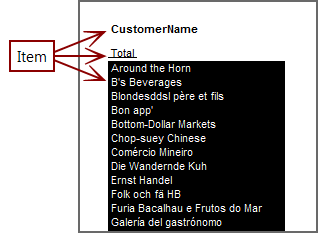
Report data elements are classified as items that share settings and attributes. An item can contain one or more elements. Selecting an element that is part of a larger item, selects the entire item. For example, the following report that was generated with the Include Parent Info option selected, shows that the parent info is a single item.

See also:
See also About Exception Coloring.