Adding Extract Date and Time Items
IMPORTANT: Extract dates and times must be specified as part of the build.
The extract time (format: 13:22) variable inserts the last time the data for cBase or model used by the report was pulled from the source, or the time when the last model in a multimodel DivePlan was sourced. Optionally, you can specify the extract time for a different cBase or model by entering its full path as an argument. For example, $EXTRACT_TIME(c:\DI-Diver\Data\demo_drl.mdl) can display 15:01 in the report footer.
NOTE: ProDiver uses the DiveLine path for the $EXTRACT_DATE and $EXTRACT_TIME variables. Extract time is probably best used in combination with another Item such as Extract Date or paired with the cBase or model name.
Complete the following steps to create a report and insert the extract date and time for the underlying cBase or model:
-
Open any cBase or model that contains an extract date. As an example, open the sales_90day.mdl file.
-
On the Console, double-click Company.
-
Click the MultiTab icon.
-
On the Console, double-click Salesperson and then Ship Month.
-
Click the Report icon to open the Default Report dialog box.
-
Click OK to display the MultiTab report.
-
Unlock the report, and click the Add Item icon.
-
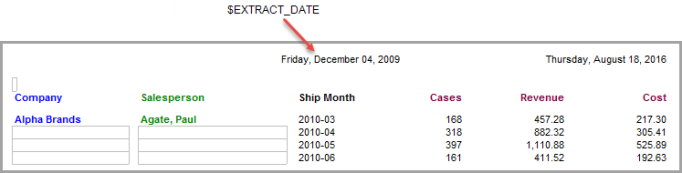
To select the variable, click $EXTRACT_DATE.
-
Click OK to
 add the cBase or model extract date to the report.
NOTE: Use the tabs in the Add Item dialog box to move the build date to a different report location.
-
To make room for the $EXTRACT_TIME value, move the build date by performing the following actions:
- Double-click the Extract Date Item to open the Edit Item dialog box.
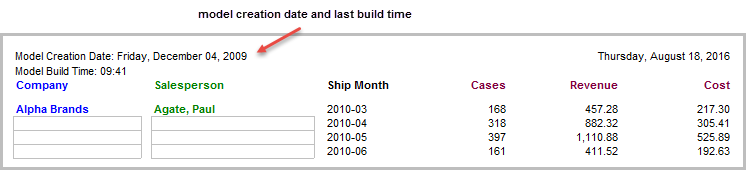
- Type the following text preceding the variable: Model Extraction Date:
- In the Position tab, select Page Left and click OK.
-
To add the latest extract time for the underlying cBase or model, open the Add Item dialog box and perform the following actions:
- Click the $EXTRACT_TIME variable and type Model Extract Time: before the variable name.
- In the Position tab, select Page Left and type 15 in the Vertical field.
-
Click OK to view the report.
- Save this report as a marker called inserting_metadata for reuse in other variable-related topics.