Summary stacking allows you to present data from a tabular report in a more vertical format. Unlike the side-by-side layout of columns in a standard tabular report, summary stacking options enable you to customize the report presentation by transforming summary column layouts.
You can create a report with summary stacking features by using the Edit Summary Layout options.
One example where summary stacking can help consolidate information is in reports that display time series or period comparisons. For example, consider a cBase that contains units, cost, and revenue information for various products for this year and last year. You can create a period comparison that compares YTD versus Last YTD and contains calculated differences between time periods. The standard tabular report displays separate columns for the summary values for each product.
A  period comparison report in standard tabular format contains columns for each value.

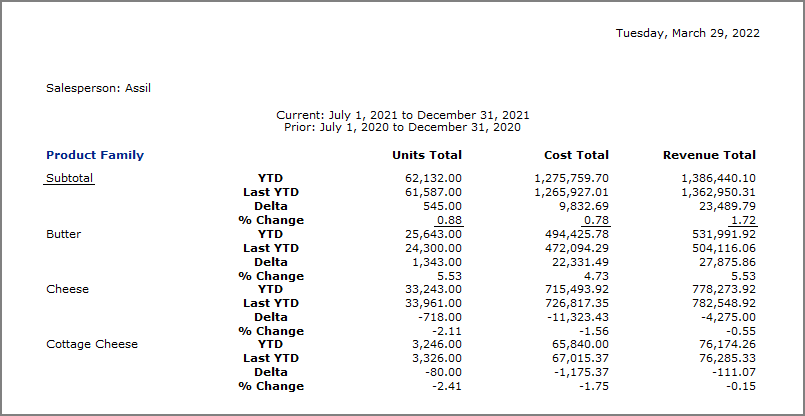
With summary stacking, this revised period comparison report stacks the columns to consolidate columns:
-
The four Units columns (Units Current, Units Previous, Units Delta, and Units % Change) are consolidated into a single column.
-
The four Cost columns (Cost Current, Cost Previous, Cost Delta, and Cost % Change) are consolidated into a single column.
-
The four Revenue columns (Revenue Current, Revenue Previous, Revenue Delta, and Revenue % Change) are consolidated into a single column.
See also: