Adding Page Header and Footer Items
Complete the following steps to add the $HEADER and $FOOTER variable values to a report.
- Open a cBase or model and build a tabular report or open the inserting_metadata marker if previously saved.
- Unlock the report and perform the following actions:
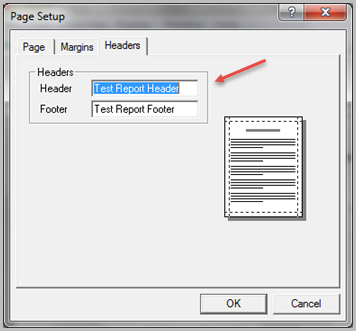
- Select File > Page Setup > Headers .
- Click the Headers tab and enter Test Report Header and Test Report Footer in the
 Header and Footer boxes.
 - Click OK to save the Header and Footer values.
- Select Display > Report to open the Default Report dialog box and perform the following actions:
- Enable the Include Print Header option.
- Enable the Include Print Footer option.
- Click OK.
- NOTE: ProDiver might lock the report and enable print mode after clicking OK.
- If needed, unlock the report again and then click the Add Item icon.
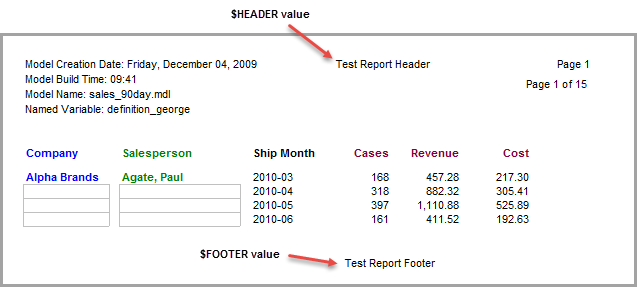
- Select Text as the Item Type and click the $HEADER variable.
- Click OK to insert the header value of Test Report Header into the report.
- Click the Add Item icon again.
- Select Text as the Item Type and click the $FOOTER variable.
-
Click OK to insert the footer value of Test Report Footer
into the report. - Click File > Save Marker as inserting_metadata to continue using this report in other topics.