Adding the Earliest and Latest Date in a Find Action
You can display the earliest ($FIND_DATE_FROM) and latest ($FIND_DATE_TO) values in a find date range action. However, if the underlying cBase or models does not contain a find date range action, ProDiver displays a blank if you add one of the find variables as an item.
Complete the following steps to create the find action and insert the earliest/latest date values:
-
Open a sales model, for example, sales_90day.mdl, or the inserting_find_actions_metadata marker, if previously saved.
-
Unlock the report.
-
Click the Tabular icon to open the dive window.
-
On the dive window, select Delta Brands.
-
On the Console, double-click Ship Date.
-
Select the Ship Date on the dive window, and then click the Sort Up icon.
-
Click the Find icon to open the Find Date Range in Ship Date dialog box. Perform the following actions:
- Select 2010/04/01 in the Find >= box.
- Select And from the boolean options.
- Select 2010/06/28 in the Find <= box.
- Select Focus for Action on Find.
-
Click Find All to
 view the dive window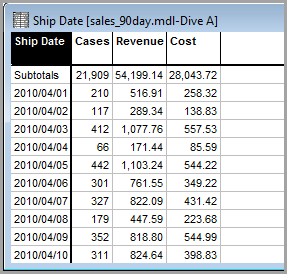
-
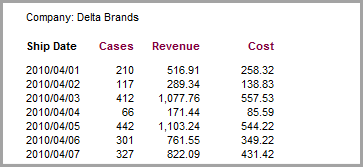
Click the Report icon and accept the default options in the Default Report dialog box.
-
Unlock the report and
drag the columns closer together. -
To open the Add Item dialog box, click the Add Item icon.
-
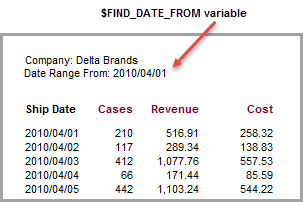
Click $FIND_DATE_FROM and perform the following actions:
- Type the following text before the variable name: Date Range From: .
- In the Breaklevel tab, select Page and Head.
- In the Position tab, select Page Left and type 40 in the Vertical offset field.
- In the Style tab, select Text as the Style Name.
-
Click OK
to view the report. -
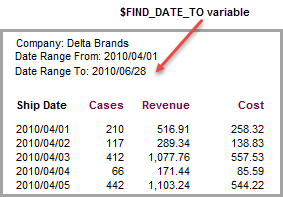
To insert the find to date, click the Add Item icon and perform the following actions:
- Click $FIND_DATE_TO.
- Type the following text before the variable name: Date Range To: .
- In the Breaklevel tab, select Page and Head.
- In the Position tab, select Page Left and type 55 in the Vertical offset field.
- In the Style tab, select Text as the Style Name.
-
Click OK
to view the report.