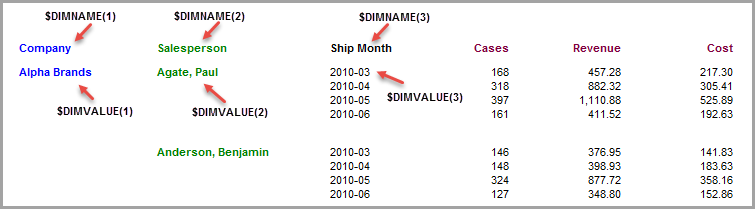
Adding Dimension Name and Value Items
Dimension values appear as row items below their dimension column headings so that the $DIMVALUE(1) variable represents the dimension values associated with $DIMNAME(1). For example, if $DIMNAME(2) is Salesperson, then $DIMVALUE(2) would be all salesperson values, such as Al, Bob, Charlie, Dave, and so on.
Dimension values can appear in a report as unsorted, sorted up, or sorted down.
This procedure describes how to create a MultiTab report, and then add the dimension name and values as items.
Complete the following steps:
-
Open the model sales_90day.mdl.
-
On the Console, double-click Company.
-
Click the MultiTab icon.
-
On the Console, double-click Salesperson and Ship Month.
-
Click the Report icon to open the Default Report dialog box.
-
Accept the default options, and then click OK to open a
 Tabular MultiTab report.
NOTE: Before adding a $DIMNAME and $DIMVALUE variable to the report, move the report headings down by setting the Vertical offset for each column heading to 30.
-
On the unlocked report, click the Add Item icon and perform the following actions:
- Click $DIMNAME( ) and enter 1 between the parentheses and enter Dimension Name Column A: before the variable.
- On the Breaklevel tab, select Page and Head.
- On the Position tab, select Page Center.
-
To add the $DIMVALUE( ) variable, click the Add Item icon and perform the following actions:
- Click $DIMVALUE( ) and enter 1 between the parentheses and enter Dimension Value Column A: before the variable.
- On the Breaklevel tab, select Page and Head.
- On the Position tab, select Page Center and enter 20 in the Vertical offset field.
-
Click OK to
view the report. -
Click File > Save Marker as inserting_more_metadata to continue using this report in topics describing summary, Info fields, and QuickView variables.