Adding Date Items
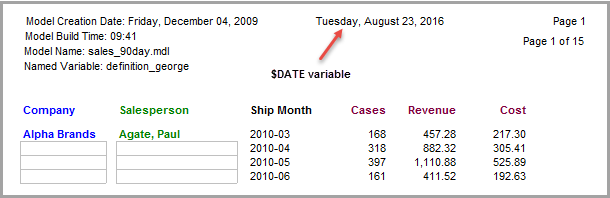
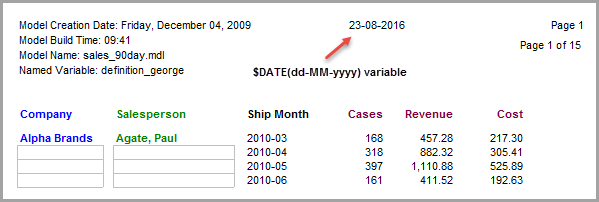
- $DATE — Inserts the current system date, for example, Tuesday, August 23, 2020. You can reformat the date by entering an argument in parentheses, such as dd-MM-yyyy, after the variable.
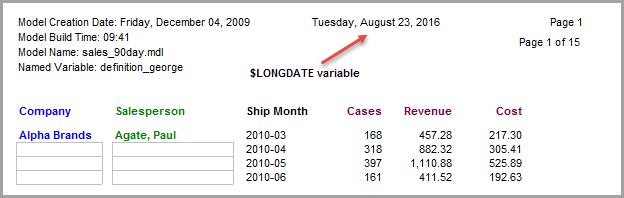
- $LONGDATE — Inserts the current system date, for example, Tuesday, August 23, 2020. This date variable is static and cannot be modified with an argument.
- $SHORTDATE — Inserts the current system date using an abbreviated format, for example, 8/23/2020.
For examples on how to use the different date variables, complete the following steps:
-
Open a cBase or model and build a tabular report or open the inserting_metadata marker if previously saved.
-
On the unlocked report, click the Add Item icon to open the Add Item dialog box.
-
Click the $DATE variable to add it to the text box.
-
Click OK to
 view the report with the current system date.
 -
To reformat the date, double-click Tuesday, August 23, 2016 to open the Edit Item dialog box.
-
Add the argument (dd-MM-yyyy) after $DATE without adding a space between the variable and the argument. Enter the month abbreviation in uppercase (MM).
-
Click OK to
view the system date with the modified format. -
To add the $LONGDATE variable, double-click 23-08-2016 to open the Edit Item dialog box.
-
Delete $DATE(dd-MM-yyyy) from the text box and click $LONGDATE.
-
Click OK
to view the system date with the extended format. -
To add the $SHORTDATE variable, double-click Tuesday, August 23, 2016 to open the Edit Item dialog box.
-
Delete $LONGDATE from the text box and click $SHORTDATE.
-
Click OK to
view the system date with the abbreviated format. -
Click File > Save Marker as inserting_metadata to continue using this report in other topics.