Adding Row and Sort Column Items
The following procedure illustrates how to insert $ROW and $SORT_COLUMN variables into a report:
-
Open a sales model, for example, sales_90day.mdl.
-
On the Console, double-click Company.
-
Click the Report icon to open the Default Report dialog box.
-
Click OK to display a simple tabular report.
-
Unlock the report, and then click the Add Column icon.
-
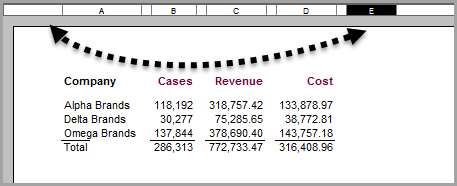
Use a drag and drop operation to moce
 Column E to the left of Column A.
ProDiver updates the column labels to reflect the changes in the column positions.
-
Select Column A, and then click the Add Item icon.
-
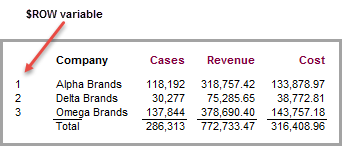
Click $ROW and perform the following actions:
- On the Breaklevel tab, set the Dimension to Company and the Location to Body.
- On the Position tab, set the Column to Column A.
- On the Style tab, set the Style Name to Text.
-
Click OK
to view the report with a row number added for each dimension value. -
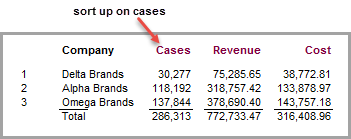
To add the name of the sort column, lock the report, and select the Cases column heading.
-
Click the Sort Up icon
to sort the summary values in the report from the lowest to the highest. The sorting column is Cases. -
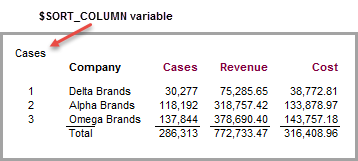
Unlock the report, and click the Add Item icon to open the Add Item dialog box.
-
Click $SORT_COLUMN.
-
Click OK
to view the report. -
Click File > Save Marker as inserting_find_actions_metadata to continue using this report in search-related topics.