Adding a Background Color to an Item
Complete the following steps:
-
Select a server with a project that contains a sales model with dimensions and summaries, such as:
- Supplier, Brand, and Ship Month
- Cases, Revenue, and Cost
For illustration purposes, this procedure refers to a sales model called sales_90day.
-
In ProDiver, locate and open sales_90day.mdl.
-
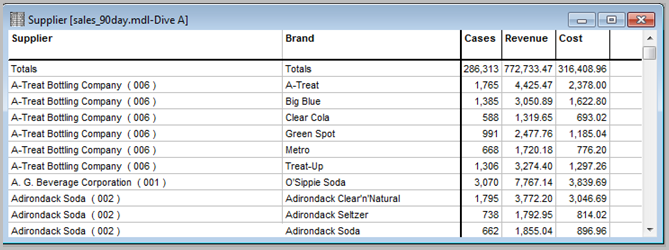
On the Console, double-click Supplier to open a basic tabular dive window.
-
Click the MultiTab icon.
-
On the Console, double-click Brand to open a
 MultiTab dive window.
 -
Click the Report icon to open the
Default Report dialog box. -
Do the following:
- In the Report Style box, select Indented 2 Level MultiTab.
-
If selected, clear the Gridlines check box.
-
Click OK to display the
sample MultiTab report without gridlines. -
Click the Lock icon to unlock the report and select the following summary column headings: Cases, Revenue, and Cost.
-
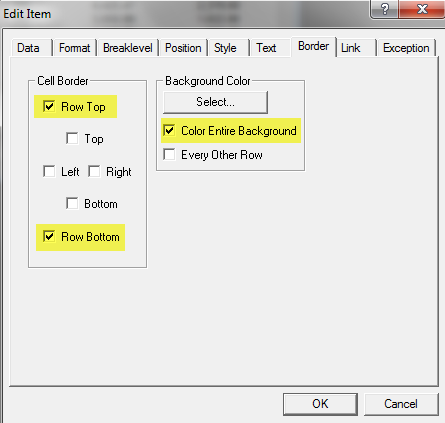
Right-click one of the selected headings, and select Edit Item to open the Edit Item dialog box.
-
Do the following:
- In the Cell Border section, click Row Top and Row Bottom.
- In the Background Color section, click the Select button, click the Yellow square, and then click OK.
-
In the Background Color section, click Color Entire Background.
-
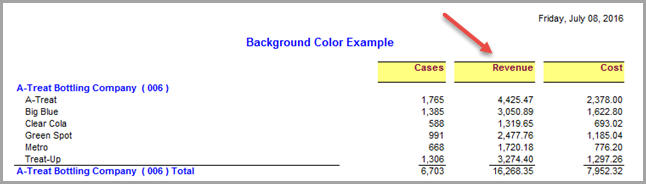
Click OK to add top and bottom borders and a yellow background color to
the summary column headings.