Before creating a Stamp Template:
- Be sure that your project has defined an alias to the target DivePort's webdata folder.
- Plan the layout and elements. You might use an existing dashboard as inspiration.
- Saving the stamp files in the customizations folder enables easier testing of the stamp from within your portal.
To create a stamp template:
-
In Workbench, open the project.
-
Select File > New > Stamp Template.
The New Stamp Template dialog box opens.
-
Select a parent folder, typically the aliased webdata folder for your DivePort instance. For example:
/Webdata/customizations/stamps
-
At the bottom of the dialog box, in the Name text box, enter a file name for the stamp, and then click Finish.
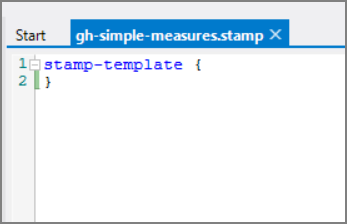
The named stamp file opens in the
 text editor.
 -
Position your pointer after the open brace, and press Enter to create a new line.
-
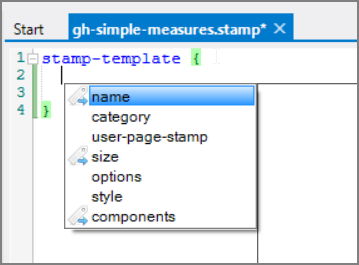
Position your cursor in line 2, and press Ctrl + Space.
A
popup opens listing available tags. Note that name, size, and components are required as indicated by the Required tag icon  .
. -
Double-click name.
The name tag is added to the file. Press Space, and then replace stamp-name-string with the name of the stamp.
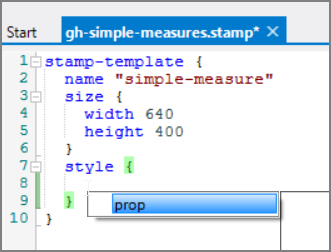
- On a new line, press Ctrl + Space, and double-click size.
- Enter a space and an open brace ({), and then press Enter.
- In the new line, press Ctrl + Space, select width, enter a space, the width of the stamp in pixels, and then press Enter.
- Add a line to specify the stamp height.
-
Position your pointer on a line after the size block and proceed to add
more elements, including portlet components. See Stamp Template Tags.If you know what element you want to add, you can type the first few letters and use the auto-complete feature.
See Stamp Component Tags for help understanding the structure and usage for each element.
TIP: A best practice is to start each element with a comment line describing what the block is for (comments start with //).
-
When the template file is complete and free of syntax errors, save the stamp file.
The stamp is now available in your DivePort instance for further testing.
TIP: Incomplete or otherwise invalid stamps appear in the Edit Stamp Portlet dialog box under the heading Invalid stamp types.
CAUTION: If you change the file name of a stamp, all stamp portlets in DivePort that refer to that stamp will break.