Plugin rules allow you to apply a rule that the other factory rule types cannot run.
Prerequisite: A plugin configuration file must be present in a sub folder of the project's plugin folder.
To add a plugin rule:
-
On the top of the Measure Factory Editor page, click Rules.
-
On the upper right, click New.
The
 New Rule pane opens on the right.
 - Select Plugin rule.
- Select a data set from the pull-down list.
- Select a plugin from the pull-down list.
-
Click Create rule.
The
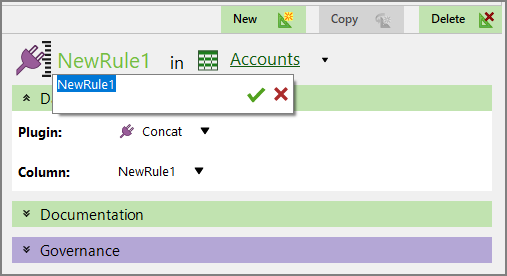
plugin rule is created and opens in the detail pane with the default name NewRule#. -
Enter a name for the rule, and click
 to confirm your changes.
NOTE: The Column automatically populates assuming the column name is the same as the rule name. If not, select the correct column from the list.
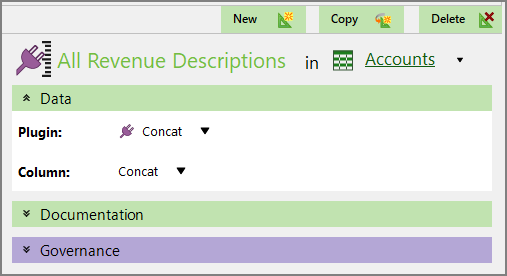
In this
example, the plugin rule is All Revenue Descriptions in the Accounts data set, using the Concat column in the Concat plugin. -
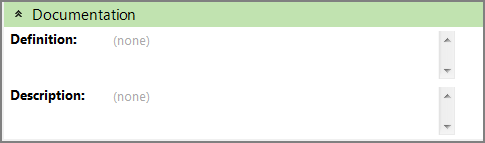
Optionally, expand the
Documentation double chevron to enter additional information about the rule. -
Click the blank space to the right of a field to edit it. When editing in the multi-line text boxes, press Ctrl+Enter or Shift+Enter to create a new line, or press Enter to apply your changes and exit edit mode.
Click
to confirm your changes or  to discard your changes.
 - Optionally, expand the Governance section to enter notes regarding governance. For example, who is responsible for updates, or when it was last modified.When editing in the multi-line text boxes, press Ctrl+Enter or Shift+Enter to create a new line, or press Enter to apply your changes and exit edit mode.
- Save the tab.

See also:
- Factory Plugin Rules
- Factory Plugin Configuration File Code Block
- Factory Plugin Configuration File Tags